

Class: Primary One
Term: third Term
Subject: Basic Science and Technology
Curriculum Theme: Basic Science
Previous Lesson: Swimming, Concept of Swimming and Preliminary Skills in Swimming
Topic: Parts of a Computer
Content/Learning Area: Identifying parts of a computer, Listing parts of a computer
Time Allocation: 40 minutes
Performance Objectives
By the end of the lesson, pupils should be able to:
- cognitive Domain:
1. Identify the different parts of a computer.
2. List at least three parts of a computer.
3. Describe the function of at least five computer parts.
- Psychomotor domain:
1. Point to and name different parts of a computer image.
- Affective Domain:
1. Show interest in learning about computers.
2. Participate actively in class discussions.
- Social Domain:
1. Work cooperatively wiht peers in group activities.
Reference Materials
- 9 – Years Basic Education Curriculum
- Abuja Educational Resource Center Scheme of Work
- NAPPS National Unified scheme of Work
- relevant Textbooks
Instructional Materials
To deliver this lesson, the teacher will employ the help of the following materials:
- Pictures of a computer and its parts
- Whiteboard or chart
- Markers
- A real computer (if available)
Rationale for the Lesson
Understanding computer parts is key to using technology well. This lesson sets the stage for future lessons on how computers work and digital skills, giving pupils important knowledge for today’s world.
Prerequisite/previous Knowledge
Pupils have a basic understanding of what a computer is from the previous lesson.
Lesson Content
Parts of a Computer
A computer has many parts that work together. Think of it like your body – each part has a special job!
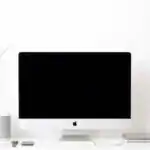
Monitor
The monitor is like a TV screen. It shows you what you’re working on.
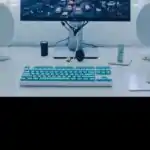
Keyboard
The keyboard lets you type letters, numbers, and symbols. It’s like a typewriter for your computer.
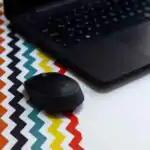
Mouse
The mouse helps you move around on the screen. You can click, drag, and scroll with it.
System Unit (SU)
This is the main part of the computer. It’s like the computer’s brain and heart, keeping everything running.
Microphone
This lets you talk to the computer, like a voice recorder.
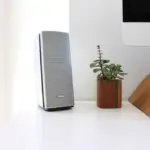
Speaker
This plays sounds from the computer, like a music player.
Web camera
This lets you see and be seen on the computer, like a video camera.
Power Supply Unit (PSU)
This gives the computer power,like a battery.
Printer
the printer makes paper copies of your work.
USB Ports
These small slots let you connect things like flash drives and printers to the computer.
Joystick
This is a handheld controller used for playing games.
Light Pen
This is a pen-like device used to draw or select items on the screen.
Teaching Methods
To deliver this lesson, the teacher will adopt the following methods: Question and answer, discussion, visual aids
instructional Procedures
To deliver this lesson, the teacher will adopt the following steps:
Step 1: Introduction
Time: 5 minutes
Teaching skill: Set Induction
Teacher’s Activity: Review previous lesson, introduce the topic, show a picture of a computer.
Pupils’ Activity: Answer questions,observe the picture.
Step 2: Clarification of Key concepts
Time: 15 minutes
Teaching Skill: Explaining, demonstrating
Teacher’s Activity: Explain each part of the computer using the picture and real computer (if available).
Pupils’ Activity: listen attentively, ask questions.
Step 3: Demonstration/Guided Practice
time: 10 minutes
Teaching Skill: Demonstrating, guiding
teacher’s Activity: Point to each part on the picture and real computer, explaining its function.
Pupils’ Activity: Point to the parts on the picture, repeat the names and functions.
Step 4: Independent practice
Time: 5 minutes
Teaching Skill: Monitoring, guiding
Teacher’s Activity: Pupils individually label parts of a computer diagram.
Pupils’ Activity: Label the parts of the computer diagram.
Step 5: Note-Taking
Time: 2 minutes
Teaching Skill: guiding, summarizing
Teacher’s Activity: Guide pupils to write down key terms and definitions.
Pupils’ Activity: Write down key terms and definitions.
Step 6: Evaluation/Review
Time: 3 minutes
Teaching Skill: Questioning, summarizing
Teacher’s Activity: Ask review questions.
Pupils’ Activity: Answer review questions.
Objective-aligned checks:
- Identify the different parts of a computer.
- List at least three parts of a computer.
- Describe the function of at least five computer parts.
Step 7: Conclusion
Time: 2 minutes
Teaching Skill: Summarizing
Teacher’s Activity: Summarize the key parts of a computer and their functions.
Pupils’ Activity: Listen to the summary.
Lesson Keywords
- Monitor – The screen that displays what you are working on.
- Keyboard – Used for typing letters, numbers, and symbols.
- Mouse – Helps you move around and interact with the screen.
- system Unit – The main part of the computer that controls everything.
- Printer – Makes paper copies of your work.
Lesson Evaluation
To evaluate the learning, the teacher asks pupils to:
- What is the monitor used for?
- What do we use to type on a computer?
- Name three parts of a computer and explain their uses.
Assignment/Homework
- Draw a computer and label its parts.
- Ask your parents or guardians to show you the different parts of their computer at home.
- Write down the names of five computer parts and what they do.
Differentiation
- For slower learners: Provide one-on-one assistance and use simpler language.
- For advanced learners: Encourage them to research additional computer parts and their functions.
- for visual/auditory/kinesthetic learners: Use visual aids, verbal explanations, and hands-on activities to cater to different learning styles.
Note for teachers
Ensure to use real-life examples and demonstrations to make the lesson engaging and understandable for primary one pupils. Encourage active participation and provide positive reinforcement.
Community Join the conversation Open discussion +