

Class: Primary One
Term: first Term
Subject: Basic Science and Technology
Curriculum Theme: Computer Studies
Previous Lesson:
Topic: Parts of a Computer: The Monitor
Content/Learning Area: Identifying and describing a monitor,Functions of a monitor,Parts of a monitor
Time Allocation: 40 minutes
Performance Objectives
By the end of the lesson,pupils should be able to:
- Cognitive Domain:
1. Identify a computer monitor.
2. Describe the functions of a computer monitor.
3. Name the parts of a computer monitor.
- Psychomotor Domain:
1. Point to a monitor in a picture or real life.
- Affective Domain:
1. Show interest in learning about computer parts.
- Social Domain:
1. Participate actively in class discussions.
Reference Materials
- 9 – Years Basic Education Curriculum
- Abuja Educational Resource center Scheme of Work
- NAPPS National Unified Scheme of Work
- Online Details
- Relevant Textbooks
Instructional Materials
To deliver this lesson, the teacher will employ the help of the following materials:
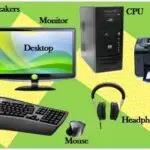
- Pictures of monitors
- whiteboard or chart paper
- Markers
Rationale for the Lesson
Understanding the parts of a computer is crucial for basic computer literacy. This lesson provides a foundation for future lessons on computer technology and its applications in daily life.
Prerequisite/Previous Knowledge
The teacher will start by asking pupils what they know about computers. the teacher will then show pictures of different computers and ask pupils to identify the monitor. This will create interest and link prior knowledge to the new topic.
Lesson Content
Parts of a Computer – The Monitor
The monitor is a very crucial part of a computer that shows us images and text. it’s like a screen that lets us see what we’re doing on the computer.
What is a Monitor?
A monitor is a flat screen that shows us what we are doing on the computer. It’s like a TV for our computer.
Functions of a Monitor
A monitor is essential for displaying information from the computer.
The following are functions of a monitor:
- Displaying images: We can see pictures, videos, and graphics on the monitor.
- displaying text: We can read words and letters on the monitor.
- Displaying applications: The monitor allows us to see and interact with various software applications.
- Displaying user interface: It shows the operating system’s interface, including icons, menus, and windows.
Parts of a Monitor
A monitor consists of several key components that work together to display images.
These include:
- Screen: This is the flat surface where the images and text are displayed.
- Bezel: This is the frame around the screen.
- Stand: This is the base that holds up the monitor.
- Buttons: These are used to change the monitor’s settings.
- Power Cord: this connects the monitor to a power source.
- Ports: These allow connections to the computer and other devices.
Teaching Methods
To deliver this lesson, the teacher will adopt the following methods: Discussion, Question and answer, Show and tell
Instructional procedures
To deliver this lesson, the teacher will adopt the following steps:
Step 1: Introduction (Set Induction)
Time: 5 minutes
Teaching Skill: Questioning
Teacher’s Activity: asks pupils what they know about computers and shows pictures of computers.
Pupils’ Activity: Respond to teacher’s questions and identify the monitor in the pictures.
Step 2: Clarification of Key Concepts
Time: 10 minutes
Teaching Skill: Explanation
Teacher’s Activity: Explains what a monitor is and its functions.
Pupils’ Activity: Listen attentively and ask questions.
Step 3: Demonstration/Guided Practice
Time: 10 minutes
Teaching Skill: Demonstration
Teacher’s Activity: Shows pictures of monitors and points out the different parts.
Pupils’ Activity: Identify the parts of the monitor in the pictures.
Step 4: Autonomous practice
Time: 5 minutes
Teaching Skill: Guided Practice
Teacher’s Activity: Asks pupils to draw a monitor and label its parts.
Pupils’ Activity: Draw and label the parts of a monitor.
step 5: Note-Taking
Time: 5 minutes
Teaching Skill: Note-Taking
Teacher’s Activity: Guides pupils in writing key points about the monitor in their notebooks.
Pupils’ Activity: Write notes in their notebooks.
step 6: Evaluation/Review
time: 5 minutes
Teaching Skill: Questioning
Teacher’s Activity: Asks evaluation questions.
Pupils’ Activity: Answer the evaluation questions.
Objective-aligned checks:
- Identify a computer monitor.
- Describe the functions of a computer monitor.
- Name the parts of a computer monitor.
Step 7: Conclusion
Time: 5 minutes
Teaching Skill: Summarizing
Teacher’s Activity: Summarizes the key points about the monitor and asks pupils to share what they have learned.
Pupils’ Activity: Share what they have learned and ask any remaining questions.
Lesson Keywords
- Monitor – A screen that displays images and text from a computer.
- Screen – The flat surface of the monitor where images are shown.
- Bezel – The frame around the screen of the monitor.
- Stand – The base that supports the monitor.
- Buttons – Controls on the monitor used to adjust settings.
Lesson Evaluation
To evaluate the learning, the teacher asks pupils to:
- What is a monitor?
- What are two things we can see on a monitor?
- What does the stand on a monitor do?
- What are the buttons on a monitor used for?
- Describe the screen of a monitor.
Assignment/Homework
- Draw a picture of a monitor and label its parts.
- List three functions of a monitor.
- Ask your parents or guardians about the type of monitor they use at home or work.
Differentiation
- for slower learners: Provide one-on-one assistance and simplified explanations.
- For advanced learners: Ask them to research different types of monitors and their features.
- For visual learners: Use more pictures and diagrams to illustrate the parts and functions of a monitor.
Note for Teachers
Ensure that all pupils have access to the necessary materials and provide extra support to those who need it.Encourage active participation and make the lesson interactive to keep pupils engaged.

Community Join the conversation Open discussion +