

Class: primary One
Term: First Term
Subject: Basic science and Technology
Curriculum Theme: Computer Studies
Previous Lesson: Parts of a Computer, The Monitor
Topic: Parts of a Computer
Content/Learning Area: Identifying and describing a keyboard, Stating the functions of a keyboard
Time Allocation: 40 minutes
Performance Objectives
By the end of the lesson, pupils should be able to:
- Cognitive Domain:
1. Identify the different parts of a keyboard.
2. Describe the function of each part of a keyboard.
3. Explain the overall function of a keyboard as an input device.
- Affective Domain:
1. Show interest in learning about computer parts.
2. Appreciate the importance of a keyboard in using a computer.
- Psychomotor Domain:
1. locate and point to different keys on a keyboard.
2. Practice typing simple words and sentences using a keyboard.
- Social Domain:
1. Work cooperatively with peers during activities.
2. Share their knowledge about keyboards with others.
Reference Materials
- 9 – Years Basic Education Curriculum
- Abuja Educational Resource Center Scheme of Work
- NAPPS National Unified Scheme of Work
- Relevant Textbooks
Instructional Materials
To deliver this lesson, the teacher will use the following materials:
- A computer with a keyboard
- Pictures of keyboards
- Whiteboard or chart paper
- Markers
Rationale for the Lesson
Understanding the parts of a computer, starting with the keyboard, is fundamental for primary school children. This lesson lays the groundwork for future lessons on computer literacy and technology, equipping them with essential digital skills.
Prerequisite/Previous Knowledge
The teacher will start by asking pupils what they know about computers. The teacher will then show a picture of a keyboard and ask them if they have ever seen one before. A brief discussion will follow to gauge prior knowledge.
Lesson Content
Parts of a Computer – The Keyboard
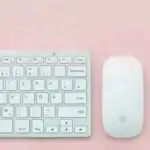
A keyboard is an input device used to type letters,numbers,and symbols into a computer. It acts as a bridge between your thoughts and the computer screen.
Key Parts of a Keyboard
Keyboards are made up of different parts that serve specific functions. These include:
- Letters: Keys for typing alphabet letters.
- Numbers: keys for typing numbers 0-9.
- Function Keys: Keys with special functions (e.g., screen brightness control).
- Spacebar: Large key for creating spaces between words.
- Shift Keys: Keys used to type capital letters or special symbols. To learn more about capital letters,you can check out this resource: Lesson on Input Devices – Keyboard and Mouse for Primary 3
- Enter/Return Key: Key to move to the next line or start a new paragraph.
- Backspace/Delete key: Key to erase mistakes. For more on this,see: lesson on Description of keys on the keyboard and their functions for Primary 3
- arrow Keys: Keys used to move the cursor up, down, left, or right.
- Caps Lock Key: Key used to type all letters in capital form.
- Tab Key: Key used to create an indentation or move the cursor to the next tab stop.
Functions of a Keyboard
A keyboard is a versatile tool with many functions that make it essential for computer use. these include:
- Typing Letters: Allows typing letters for writing.
- Typing Numbers: Allows typing numbers for math or dates.
- Special Symbols: Allows typing symbols like !, ?,., etc.
- Spacebar Function: Creates spaces between words for readability.
- Enter/Return key Function: Moves to the next line or starts a new paragraph.
- Backspace/Delete Key function: Erases mistakes for corrections.
- Arrow Keys Function: Navigates through documents and web pages.
- Function Keys Function: Performs specific tasks like adjusting volume or brightness.
- Caps Lock Function: Types all letters in uppercase.
- Tab Key Function: Creates indents and aligns text.
teaching Methods
To deliver this lesson, the teacher will adopt the following methods: Discussion, presentation, question and Answer
Instructional Procedures
To deliver this lesson, the teacher will adopt the following steps:
Step 1: Introduction (Set Induction)
Time: 5 minutes
Teaching skill: Questioning
Teacher’s Activity: Asks pupils what they know about computers and shows a picture of a keyboard.
Pupils’ Activity: Respond to the teacher’s questions and observe the picture.
Step 2: Clarification of key Concepts
Time: 10 minutes
Teaching Skill: Explaining
Teacher’s Activity: Explains what a keyboard is and its function as an input device.
Pupils’ Activity: Listen attentively and ask questions.
Step 3: Exhibition/Guided Practice
Time: 10 minutes
Teaching Skill: Demonstrating
Teacher’s Activity: Demonstrates the use of different keys on the keyboard.
Pupils’ Activity: Observe the demonstration and participate in guided practice.
Step 4: Self-reliant Practice
Time: 5 minutes
Teaching Skill: Monitoring
Teacher’s Activity: Supervises pupils as they practice typing simple words.
Pupils’ Activity: Practice typing simple words and sentences.
Step 5: Note-Taking
Time: 5 minutes
Teaching Skill: Guiding
Teacher’s Activity: Guides pupils in taking notes on the key parts and functions of a keyboard.
Pupils’ Activity: Take notes on the key parts and functions of a keyboard.
Step 6: Evaluation/Review
Time: 5 minutes
Teaching Skill: Questioning
Teacher’s Activity: Asks evaluation questions to assess understanding.
Pupils’ Activity: Answer the evaluation questions.
Objective-aligned checks:
- Identify the different parts of a keyboard.
- Describe the function of each part of a keyboard.
- Explain the overall function of a keyboard as an input device.
Step 7: Conclusion
Time: 2 minutes
teaching Skill: Summarizing
Teacher’s Activity: Summarizes the key points about the keyboard and its functions.
Pupils’ Activity: Listen to the summary and ask any remaining questions.
lesson Keywords
- keyboard – An input device used to type letters, numbers, and symbols into a computer.
- Input Device – A device that sends information to a computer.
- Function Keys – Keys with special functions (e.g., screen brightness control).
- Spacebar – Key for creating spaces between words.
- Shift Keys – Keys used to type capital letters or special symbols.
- Enter/Return Key – Key to move to the next line or start a new paragraph.
- Backspace/Delete key – key to erase mistakes.
lesson Evaluation
To evaluate the learning, the teacher asks pupils to:
- What is a keyboard?
- Name three parts of a keyboard.
- What does the spacebar do?
- What is the function of the Enter/Return key?
- What is the purpose of the Backspace/Delete key?
Assignment/Homework
- practice typing your name and a short sentence using a keyboard.
- Draw a picture of a keyboard and label at least five different keys.
- Ask your parents or guardians about other uses of the keyboard at home.
Differentiation
- For slower learners: Provide one-on-one assistance and use simpler language.
- For advanced learners: Encourage them to explore additional keyboard functions and features.
- For visual/auditory/kinesthetic learners: Use visual aids, verbal explanations, and hands-on activities to cater to different learning styles.
Note for Teachers
Ensure that pupils have access to a keyboard for practice.Encourage them to explore the different keys and their functions. Provide positive reinforcement and encouragement to build their confidence in using the keyboard.


Community Join the conversation Open discussion +