

Class: Primary One
Term: First Term
Subject: Basic Science and Technology
Curriculum Theme: Computer Studies
Previous Lesson:
Topic: the Computer Mouse
Content/Learning Area: Identifying a computer mouse, Stating the features of a computer mouse
Time Allocation: 40 minutes
Performance Objectives
By the end of the lesson, pupils should be able to:
- Cognitive Domain:
1. Identify a computer mouse.
2. state the features of a computer mouse.
- Psychomotor Domain:
1.Demonstrate the use of a computer mouse to move the cursor.
- Affective Domain:
1. Show interest in learning about computer input devices.
- Social Domain:
1. Work cooperatively wiht peers during activities.
Reference materials
- 9 – Years basic Education curriculum
- abuja Educational Resource Center Scheme of Work
- NAPPS National Unified Scheme of Work
- Online Details
- Relevant Textbooks
Instructional Materials
To deliver this lesson, the teacher will use the following materials:
- A computer mouse
- A computer
- whiteboard or chart paper
- Markers
Rationale for the Lesson
Understanding the computer mouse is crucial for basic computer literacy. This lesson provides a foundation for future lessons on computer operations and digital literacy skills.
Prerequisite/Previous Knowledge
Pupils have likely seen a computer before, even if they haven’t used one directly.
Lesson Content
Computer Mouse
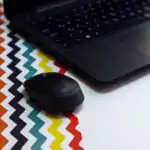
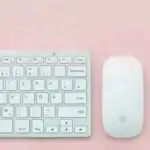
A computer mouse is an input device used to control the cursor on a computer screen. It’s like a remote control for your computer screen!
Features of a Mouse
The characteristics and functionalities that define a computer mouse are its features. These include:
Physical Characteristics
These are the physical attributes of the mouse. They are:
- It’s usually small and rounded, with a slightly longer body.
- It has two or three buttons on top: a left button,a right button,and often a middle scroll wheel.
- It may have a cable for wired connection or be wireless.
- It is made of plastic or similar material.
Functionality
These are the functions that the mouse performs. They are:
- The mouse moves the cursor, a small arrow or pointer on the screen. You click the buttons to select things on the screen.
- It connects to the computer with a cable or wirelessly using Bluetooth.
- It allows for scrolling through web pages and documents.
- It enables dragging and dropping items on the screen.
Teaching Methods
to deliver this lesson, the teacher will adopt the following methods: Discussion, exhibition, Question and answer.
Instructional Procedures
To deliver this lesson, the teacher will adopt the following steps:
Step 1: Introduction (Set Induction)
Time: 5 minutes
Teaching Skill: Questioning
Teacher’s Activity: Asks pupils if they have seen a computer mouse before and what they know about it.
Pupils’ Activity: Respond to the teacher’s questions.
Step 2: Description of Key Concepts
Time: 10 minutes
Teaching Skill: Explaining
Teacher’s Activity: Explains what a computer mouse is and its function.
Pupils’ Activity: Listen attentively and ask questions.
Step 3: Demonstration/Guided Practice
Time: 10 minutes
Teaching Skill: Demonstrating
Teacher’s Activity: Demonstrates how to use a computer mouse to move the cursor and click.
Pupils’ activity: observe the demonstration and ask questions.
Step 4: Self-Reliant Practice
Time: 5 minutes
Teaching Skill: Monitoring
Teacher’s Activity: Guides pupils as they practice using the mouse.Pupils’ Activity: practice using the mouse to move the cursor and click.
Step 5: Note-Taking
Time: 5 minutes
Teaching Skill: Note-taking
Teacher’s Activity: Guides pupils in taking notes on the key features of a computer mouse.
pupils’ Activity: Take notes on the key features of a computer mouse.
Step 6: Evaluation/Review
Time: 5 minutes
Teaching Skill: Questioning
Teacher’s activity: Asks evaluation questions to assess understanding.pupils’ Activity: Answer the evaluation questions.
Objective-aligned checks:
- Identify a computer mouse.
- state the features of a computer mouse.
- Demonstrate the use of a computer mouse to move the cursor.
Step 7: Conclusion
Time: 2 minutes
Teaching Skill: Summarizing
Teacher’s Activity: Summarizes the key points of the lesson.
Pupils’ Activity: Listen attentively.
lesson Keywords
- Cursor – A visual indicator on a display screen that shows the position where the next interaction with the device will occur.
- Input Device – A device used to provide data and control signals to an facts processing system such as a computer.
- Click – Pressing a button on the mouse to select an item.
- Scroll Wheel – A wheel on the mouse used to move up and down a page.
Lesson Evaluation
To evaluate the learning, the teacher asks pupils to:
- What is a computer mouse?
- How do you move the cursor using the mouse?
- What are the buttons on a computer mouse used for?
- How is a computer mouse connected to the computer?
- Why is it vital to keep the mouse clean?
Assignment/Homework
- Draw a picture of a computer mouse and label its parts.
- Ask your parents or guardians to show you how they use a computer mouse at home.
- Write down three things you can do with a computer mouse.
Differentiation
- For slower learners: provide one-on-one assistance and use simpler language to explain the concepts.
- For advanced learners: Encourage them to explore additional features of the mouse, such as double-clicking and right-clicking.
- For visual/auditory/kinesthetic learners: Use visual aids,verbal explanations,and hands-on activities to cater to different learning styles.
Note for Teachers
Ensure that each pupil has the chance to practice using the computer mouse. Provide clear and concise instructions, and be patient with pupils who are struggling. Emphasize the importance of proper mouse handling and care.

Community Join the conversation Open discussion +