

Class: Primary Three
Term: First Term
subject: Basic Science and Technology
Curriculum Theme: Computer Studies
Previous Lesson: Input Devices, Mouse
Topic: INPUT DEVICES – Description of keys on the keyboard and their functions
Content/Learning Area: What is a Keyboard?, Uses of the keyboard, Types and Functions of Keys on the Keyboard
Time Allocation: 40 minutes
Performance Objectives
By the end of the lesson, pupils should be able to:
- Cognitive Domain:
1. Mention different uses of a keyboard.
2. Mention 6 types of keys on the keyboard and their functions.
3. Identify keys on the keyboard.
- Psychomotor Domain:
1. Demonstrate how to type and scroll up and down on the keyboard.
- Affective Domain:
1. Show interest in learning about keyboard functions.
- Social Domain:
1. Work cooperatively with peers during activities.
Reference Materials
- 9 – years Basic Education Curriculum
- Abuja Educational Resource Center Scheme of Work
- NAPPS National Unified scheme of Work
- Relevant Textbooks
Instructional Materials
To deliver this lesson, the teacher will use the following materials:
- A computer with a keyboard
- Whiteboard or chart paper
- Markers
- Pictures of keyboards
Rationale for the Lesson
Understanding the keyboard is fundamental for computer literacy. This lesson provides a foundation for future lessons on computer applications and digital skills, empowering pupils to use computers effectively.
Prerequisite/Previous Knowledge
The teacher will start by asking pupils what they already know about computers and how we interact with them. A brief discussion will follow,leading into the introduction of the keyboard as a key input device.
Lesson Content
What is a Keyboard?
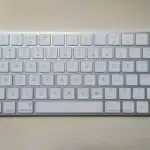
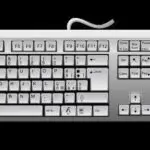
The keyboard is a vital input device used to communicate with a computer. It lets us type text, numbers, and symbols that the computer processes and shows on the screen. It’s like a bridge between us and the computer.
Uses of the Keyboard
The keyboard is a versatile tool with many applications. These include:
- Typing: We use it to write emails, create documents, and send messages.
- Navigating: Arrow keys and other special keys help us move around in documents and web pages.
- Controlling the Computer: We use it to give commands to the computer and open programs.
- Playing Games: Many games use the keyboard to control characters and actions.
- Searching for Information: We use it to type search words on the internet.
- Data Entry: Keyboards are used to input data into spreadsheets and databases.
Types and Functions of Keys on the Keyboard
The keyboard is composed of various types of keys, each serving a specific function. These include:
Alphabetic Keys
These keys have the letters A to Z. We use them to write words and sentences.
Numeric Keys
These keys have the numbers 0 to 9. We use them for numbers in documents and calculations.
System keys
System keys perform specific functions within the operating system. They are:
- Enter Key: Used to confirm actions and start new lines.
- Shift Key: Used to type capital letters and special characters.
- ctrl Key: used with other keys for shortcuts.
- Alt Key: Similar to the Ctrl key,used for shortcuts.
- Windows Key: Opens the Start menu in Windows operating systems.
- Menu Key: Opens a context menu, similar to right-clicking the mouse.
Alphanumeric Keys
These keys have both letters and numbers.
Arrow/Navigation Keys
These keys have arrows to move the cursor around the screen and scroll through pages.
Function Keys
These keys (F1, F2, etc.) have special functions that change depending on the program.
Special Keys
Special keys perform unique actions and commands. examples are:
- Escape (esc) Key: Used to cancel actions or close windows.
- Delete Key: Erases text to the right of the cursor.
- Backspace Key: Erases text to the left of the cursor.
- Tab Key: Moves the cursor to the next tab stop.
- Caps Lock Key: Makes all letters capital.
- Spacebar: Adds spaces between words.
- Print Screen: Captures a screenshot of the current screen.
- Scroll Lock: In some applications, it locks scrolling functionality.
Teaching Methods
To deliver this lesson, the teacher will adopt the following methods: Discussion, presentation, Practical Activity
Instructional Procedures
To deliver this lesson, the teacher will adopt the following steps:
Step 1: Introduction
Time: 5 minutes
teaching Skill: set Induction
teacher’s Activity: ask pupils what they know about computers and how we use them to interact with them. Introduce the keyboard as a primary input device.
Pupils’ Activity: Participate in the discussion, sharing their prior knowledge.
Step 2: description of Key Concepts
Time: 10 minutes
teaching Skill: Clarification
Teacher’s Activity: Explain the different types of keys on the keyboard (alphabetic,numeric,system,arrow,function,special) and their functions using a real keyboard and visual aids.
Pupils’ Activity: Listen attentively, ask questions for clarification.
Step 3: Demonstration/Guided Practice
Time: 10 minutes
Teaching Skill: Demonstration, Guided Practice
Teacher’s Activity: Demonstrate typing and using different keys (e.g., arrow keys, Enter key, Shift key). Guide pupils in practicing typing simple words and sentences.
Pupils’ Activity: Observe the demonstration, practice typing under teacher’s guidance.
Step 4: Independant Practice
Time: 5 minutes
Teaching Skill: Monitoring, Feedback
Teacher’s Activity: Allow pupils to practice typing independently, providing individual assistance as needed.
Pupils’ Activity: Practice typing independently, applying what they have learned.
Step 5: Note-Taking
Time: 5 minutes
teaching Skill: Note-Taking
Teacher’s Activity: Guide pupils in taking notes on the key concepts covered in the lesson.
Pupils’ Activity: Take notes on the key concepts.
Step 6: Evaluation/Review
Time: 5 minutes
Teaching Skill: Questioning, Feedback
Teacher’s Activity: Ask evaluation questions to assess pupils’ understanding.
Pupils’ Activity: Answer the evaluation questions.
Objective-aligned checks:
- Mention different uses of a keyboard.
- Mention 6 types of keys on the keyboard and their functions.
- Identify keys on the keyboard.
Step 7: Conclusion
Time: 2 minutes
Teaching Skill: Summarizing
Teacher’s Activity: Summarize the key concepts covered and encourage pupils to practice using the keyboard regularly to improve their skills.
Pupils’ Activity: Listen to the summary and ask any remaining questions.
Lesson Keywords
- Keyboard – An input device used to type text and commands into a computer.
- Input Device – A device that sends information to a computer.
- Alphabetic Keys – Keys with letters A to Z.
- Numeric Keys – Keys with numbers 0 to 9.
- Function Keys – Keys (F1-F12) with special functions.
- Special Keys – Keys like Esc, Ctrl, shift, and alt that perform specific actions.
Lesson Evaluation
To evaluate the learning, the teacher asks pupils to:
- What are some uses of the keyboard?
- Name two special keys and their functions.
- Name two types of keys and their functions.
- What is the difference between the delete and Backspace keys?
- What is the function of the Enter key?
Assignment/Homework
- Practice typing your name and address using the keyboard.
- Identify and list five special keys on the keyboard and describe their functions.
- Write a short paragraph about why the keyboard is an vital tool for using a computer.
Differentiation
- For slower learners: Provide one-on-one assistance and use simpler examples.
- For advanced learners: Encourage them to explore additional keyboard shortcuts and functions.
- For visual/auditory/kinesthetic learners: Use visual aids, verbal explanations, and hands-on activities to cater to different learning styles.
Note for Teachers
Ensure that each pupil has access to a keyboard for practice. Encourage pupils to explore and experiment with different keys to enhance their understanding and skills. Provide additional support to pupils who struggle with typing or understanding the functions of different keys.


Community Join the conversation Open discussion +