

Class: Primary Two
Term: Second Term
Subject: Basic Science and Technology
Curriculum Theme: Computer Studies
Previous Lesson: Features of a Keyboard
Topic: Uses of A Keyboard
Content/Learning Area: Typing Words, Interacting with a Computer, Creating Art, Playing Music, Learning alphabets and Numbers
Time Allocation: 40 minutes
Performance Objectives
By the end of the lesson, pupils should be able to:
- Cognitive Domain:
1. State two uses of a keyboard.
2. Explain how a keyboard helps us interact with computers.
- Affective Domain:
1. Show interest in learning about keyboards and their uses.
2. Express recognition for the role of keyboards in daily life.
- Psychomotor Domain:
1. Demonstrate the ability to type simple words on a keyboard.
2. Show proficiency in using arrow keys to navigate a computer screen.
- Social Domain:
1. Work collaboratively with peers during activities.
2. Share knowledge about keyboard usage with others.
Reference Materials
- 9 – Years basic Education Curriculum
- Abuja Educational Resource Center Scheme of Work
- NAPPS National Unified Scheme of Work
- Relevant Textbooks
Instructional Materials
To deliver this lesson, the teacher will employ the help of the following materials:
- A computer with a keyboard
- Whiteboard or chart paper
- Markers or crayons
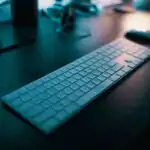
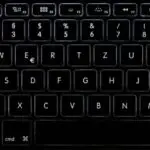
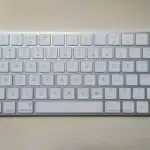
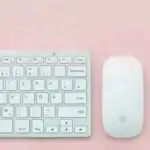
- Pictures of keyboards
Rationale for the Lesson
Understanding the uses of a keyboard is crucial for pupils’ future interaction with technology. This lesson lays the foundation for future lessons on computer literacy and digital skills.
Prerequisite/Previous Knowledge
The teacher will start by asking pupils what they know about computers. A brief discussion will follow,leading to the introduction of the keyboard as a key component of a computer.The teacher will then ask pupils to guess what a keyboard is used for.
Lesson content
Typing Words
The most common use of a keyboard is typing words. It lets us create documents, emails, messages, and even stories. Each key represents a letter,number,or symbol. Pressing a key sends information to the computer, which displays it on the screen.
Interacting With a Computer
Keyboards help us interact with computers. We use them to navigate menus, open programs, and play games. Special keys,like arrow keys and the space bar,help control the computer.
Creating Art
You can even create simple art using a keyboard! Some keys can draw lines, shapes, and patterns. Use different letters and symbols to make pictures.
Playing Music
Some educational software uses keyboards to play musical notes. This is a fun way to learn about music and sounds.
Learning Alphabets and Numbers
Keyboards have keys for letters and numbers. This is a playful way for children to learn the alphabet and number sequences.
Teaching Methods
To deliver this lesson, the teacher will adopt the following methods: Discussion, Presentation, Question and Answer.
Instructional Procedures
To deliver this lesson, the teacher will adopt the following steps:
Step 1: Introduction (Set Induction)
Time: 5 minutes
teaching Skill: Questioning
Teacher’s Activity: Asks pupils what they know about computers and introduces the keyboard.
Pupils’ activity: Respond to teacher’s questions and participate in the discussion.
Step 2: Clarification of Key Concepts
Time: 10 minutes
Teaching Skill: Explanation
Teacher’s Activity: Explains the different uses of a keyboard.
Pupils’ Activity: Listen attentively and ask questions.
Step 3: Exhibition/Guided Practice
Time: 10 minutes
teaching Skill: Demonstration
Teacher’s Activity: Demonstrates typing and using the keyboard to interact with the computer.
Pupils’ Activity: Observe the demonstration and participate in guided practice.
step 4: Self-reliant Practice
Time: 5 minutes
Teaching Skill: Monitoring
Teacher’s Activity: Supervises pupils as they practice using the keyboard.
Pupils’ activity: Practice typing and interacting with the computer independently.
Step 5: Note-Taking
Time: 5 minutes
Teaching Skill: Note-taking
Teacher’s Activity: Guides pupils in taking notes on the key concepts.
Pupils’ activity: Take notes on the lesson.
Step 6: Evaluation/Review
Time: 5 minutes
Teaching Skill: Questioning
teacher’s Activity: Asks evaluation questions to assess understanding.
pupils’ Activity: Answer the evaluation questions.
Objective-aligned checks:
- State two uses of a keyboard.
- Explain how a keyboard helps us interact with computers.
- Show interest in learning about keyboards and their uses.
Step 7: Conclusion
Time: 5 minutes
Teaching Skill: Summarizing
Teacher’s Activity: Summarizes the key points and assigns homework.
Pupils’ Activity: Listen to the summary and note the homework.
Lesson Keywords
- Keyboard – An input device used to type letters, numbers, and symbols into a computer.
- Typing – The act of writing using a keyboard.
- Interact – To communicate or engage with something.
- Navigate – To find your way around a computer system or program.
- Software – Programs used by a computer.
Lesson Evaluation
To evaluate the learning, the teacher asks pupils to:
- What is the main topic we discussed today?
- Name two uses of a keyboard.
- Why is it crucial to learn about keyboards?
- How can you use a keyboard to interact with a computer?
- what are some other ways a keyboard can be used?
Assignment/homework
- Practice typing your name and a short sentence on a computer keyboard.
- draw a picture of a keyboard and label at least five keys.
- Ask your parents or guardians about how they use keyboards in their daily lives and write down two examples.
Differentiation
- For slower learners: Provide one-on-one assistance and simplified instructions.
- For advanced learners: Encourage them to explore more advanced keyboard functions and typing exercises.
- For visual/auditory/kinesthetic learners: Use visual aids, verbal explanations, and hands-on activities to cater to different learning styles.
Note for Teachers
Ensure that each pupil has access to a keyboard for practice. Encourage active participation and provide constructive feedback. Adjust the pace of the lesson based on the pupils’ understanding and engagement.
Community 1 comment Open discussion +