

Class: Primary Two
Term: Second Term
Subject: basic Science and Technology
Curriculum Theme: Computer Studies
Previous Lesson:
Topic: Features Of A Mouse
Content/Learning Area: What is a Mouse?, The Main Features of a Mouse
Time Allocation: 40 minutes
Performance objectives
By the end of the lesson, pupils should be able to:
- Cognitive Domain:
1.Identify at least two features of a computer mouse.2. Explain the importance of a mouse in using a computer.
3. Describe different types of computer mice.
- Affective Domain:
1. Show interest in learning about computer peripherals.
- Psychomotor Domain:
1. Demonstrate the proper way to hold and use a computer mouse.
- Social Domain:
1. Work cooperatively with peers during activities.
Reference Materials
- 9 – Years Basic Education Curriculum
- Abuja educational Resource Center Scheme of Work
- NAPPS National Unified Scheme of Work
- Online Details
- Relevant Textbooks
Instructional Materials
To deliver this lesson, the teacher will use the following materials:
- A computer mouse
- whiteboard or chart paper
- Markers
- Pictures of different types of mice
Rationale for the Lesson
Understanding the features of a computer mouse is crucial for basic computer literacy. This lesson provides a foundation for future lessons on computer applications and technology.
Prerequisite/Previous Knowledge
The teacher will begin by asking students what they already know about computers and how we interact with them. A brief discussion will follow, leading into the introduction of the computer mouse as a key input device.
Lesson Content
What is a Mouse?
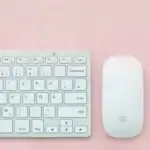
A computer mouse is a small device used to control a computer.It’s called a “mouse” as of its shape, resembling a small rodent.
The Main Features of a Mouse
The main features of a mouse are what make it a useful tool for interacting with computers. These include:
- Size: Mice are usually small and fit comfortably in a user’s hand.
- Buttons: Most have at least two buttons (left and right) for selecting, clicking, and dragging.
- Scroll Wheel: Many have a scroll wheel for easy up and down navigation.
- cord or Wireless: mice can be corded (connected by a cable) or wireless (using Bluetooth).
- optical Sensor: Modern mice use an optical sensor to track movement on a surface.
- Ergonomic Design: Some mice are designed to fit the natural curve of the hand, reducing strain.
- Customizable Settings: Many modern mice allow users to customize button functions and sensitivity.
Teaching Methods
To deliver this lesson, the teacher will adopt the following methods: Discussion, Exhibition, Question and Answer
Instructional Procedures
To deliver this lesson, the teacher will adopt the following steps:
Step 1: Introduction (Set Induction)
Time: 5 minutes
teaching Skill: Questioning
Teacher’s Activity: Ask students what they know about computers and how we use them.
Pupils’ Activity: Respond to the teacher’s questions, sharing their prior knowledge.
Step 2: Clarification of Key Concepts
Time: 10 minutes
Teaching Skill: Explaining
Teacher’s Activity: Introduce the computer mouse, explaining its purpose and basic features.
Pupils’ Activity: Listen attentively and ask clarifying questions.
Step 3: demonstration/Guided practice
Time: 10 minutes
Teaching Skill: demonstrating
Teacher’s Activity: Demonstrate how to use a mouse, highlighting its buttons and scroll wheel.
Pupils’ activity: Observe the demonstration and ask questions.
Step 4: Autonomous Practice
Time: 5 minutes
Teaching Skill: Monitoring
teacher’s Activity: Allow students to practice using a mouse under supervision.
Pupils’ Activity: Practice using the mouse,exploring its features.
Step 5: Note-Taking
Time: 5 minutes
Teaching Skill: Guiding
Teacher’s Activity: Guide students in taking notes on the main features of a mouse.
pupils’ Activity: Take notes on the key features of a mouse.
step 6: Evaluation/Review
Time: 5 minutes
Teaching Skill: Questioning
Teacher’s Activity: Ask review questions to assess understanding.
Pupils’ Activity: Answer the review questions.
Objective-aligned checks:
- Identify at least two features of a computer mouse.
- Explain the importance of a mouse in using a computer.
- Describe different types of computer mice.
Step 7: Conclusion
Time: 5 minutes
Teaching Skill: Summarizing
Teacher’s Activity: Summarize the key features of a mouse and assign a drawing activity.
Pupils’ Activity: Listen to the summary and prepare for the drawing activity.
Lesson Keywords
- Mouse – A hand-operated input device that controls the cursor on a computer screen.
- Buttons – Clickable parts of the mouse used for selecting and executing commands.
- Scroll Wheel – A wheel on the mouse used for scrolling thru documents or web pages.
- Optical Sensor – A component that tracks movement on a surface.
- Wireless – A type of mouse that connects to the computer without a cable.
Lesson Evaluation
To evaluate the learning, the teacher asks pupils to:
- Name two features of a computer mouse.
- Why is a mouse crucial for using a computer?
- What is the purpose of the scroll wheel?
- What are the differences between a corded and a wireless mouse?
Assignment/Homework
- Draw a picture of a computer mouse and label its parts.
- List three reasons why a mouse is crucial for using a computer.
- Research and write down the names of three different types of computer mice.
Differentiation
- For slower learners: Provide one-on-one assistance and simplified explanations.
- For advanced learners: Encourage them to research different types of mice and their advanced features.
- For visual/auditory/kinesthetic learners: Use visual aids, verbal explanations, and hands-on activities to cater to different learning styles.
Note for Teachers
Ensure each student has an opportunity to physically interact with a mouse during the lesson. Provide clear and simple instructions, and encourage questions to ensure understanding.



Community Join the conversation Open discussion +