

Class: Primary Two
Term: First Term
Subject: Basic Science and Technology
Curriculum Theme: Computer Studies
Previous Lesson: Parts of a Computer III
Topic: Features of a Monitor
Content/Learning Area: What is a Monitor?, The Main Features of a Monitor
time Allocation: 40 minutes
Performance Objectives
By the end of the lesson, pupils should be able to:
- Cognitive Domain:
– describe the features of a monitor.
- Psychomotor Domain:
– Identify the different parts of a monitor.
- Affective Domain:
– Show interest in learning about computer hardware.
- Social Domain:
– Participate actively in class discussions.
Reference Materials
- 9 – Years Basic Education Curriculum
- Abuja Educational Resource Center Scheme of Work
- NAPPS National Unified Scheme of Work
- Relevant Textbooks
Instructional Materials
To deliver this lesson, the teacher will employ the help of the following materials:
- Whiteboard or chart
- Markers or pens
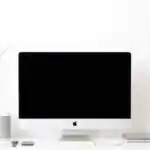
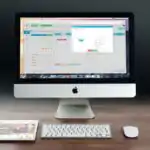
- Pictures of monitors
- A working computer with a monitor (optional)
Rationale for the Lesson
Understanding the features of a monitor is crucial for basic computer literacy, forming a foundation for future lessons on computer hardware and software.
Prerequisite/Previous Knowledge
Pupils have a basic understanding of computers from previous exposure.
Lesson Content
What is a Monitor?
A monitor is a display device that shows us images and facts from a computer. It’s like a television screen for your computer.
The Main Features of a monitor
A monitor has several key features that define its functionality and appearance. These include:
The following are the main features of a monitor:
- Screen: This is the main part where we see images and text.
- Frame: the border around the screen, protecting it.
- Buttons: used to change settings like brightness and volume.
- Stand: Holds the monitor up for easy viewing.
- Power Button: Turns the monitor on and off.
- Ports: Connections on the back for connecting to the computer.Examples include HDMI,VGA,and USB ports.
- Size: Monitors come in various sizes, typically measured in inches diagonally.
- Resolution: The number of pixels on the screen, affecting the clarity of the image. Higher resolution means a sharper image.
- Brightness: How radiant the screen is, adjustable for different lighting conditions.
- contrast Ratio: the difference between the darkest and brightest parts of the image, affecting the depth of the image.
Teaching Methods
To deliver this lesson, the teacher will adopt the following methods: Discussion, Question and answer, Visual aids
Instructional Procedures
To deliver this lesson, the teacher will adopt the following steps:
Step 1: Introduction (Set Induction)
Time: 5 minutes
Teaching Skill: Questioning
Teacher’s Activity: asks pupils what they know about computers and shows pictures of monitors.
Pupils’ Activity: Respond to questions and observe the pictures.
Step 2: Clarification of Key Concepts
Time: 15 minutes
Teaching Skill: Explaining
Teacher’s Activity: Explains what a monitor is and its main features using visual aids.
Pupils’ Activity: listen attentively and ask questions.
Step 3: Presentation/Guided Practice
Time: 10 minutes
Teaching Skill: Demonstrating
Teacher’s Activity: Points out the different parts of a monitor (if available) and explains thier functions.
Pupils’ Activity: Observe and participate in the presentation.
Step 4: Self-Reliant Practice
Time: 5 minutes
Teaching Skill: monitoring
Teacher’s Activity: Asks pupils to identify the parts of a monitor from a picture.
Pupils’ Activity: Identify and label the parts of the monitor.
Step 5: Note-Taking
Time: 2 minutes
teaching Skill: Guiding
Teacher’s Activity: Guides pupils in taking notes on the main features of a monitor.
Pupils’ Activity: Write down key points.
Step 6: Evaluation/Review
Time: 3 minutes
teaching Skill: Questioning
Teacher’s Activity: Asks review questions to assess understanding.
Pupils’ activity: Answer the review questions.
Step 7: Conclusion
Time: 2 minutes
Teaching Skill: Summarizing
Teacher’s Activity: Summarizes the key features of a monitor and assigns homework.
pupils’ Activity: listen to the summary and note the homework.
Lesson Keywords
- Monitor – A display device that shows images and information from a computer.
- Screen – The main part of the monitor where images and text are displayed.
- Frame – The border around the screen, protecting it.
- Buttons – Controls used to change settings like brightness and volume.
- Stand – The support that holds the monitor upright.
- Ports – Connections on the back for connecting to the computer.
Lesson Evaluation
To evaluate the learning, the teacher asks pupils to:
- What is the main purpose of a computer monitor?
- Name three components of a monitor.
- Why are monitors significant for computers?
Assignment/Homework
- Draw and label the parts of a monitor.
- List five features of a monitor and explain their functions.
Differentiation
- For slower learners: Provide one-on-one assistance and use simpler language.
- for advanced learners: Encourage them to research different types of monitors and their specifications.
- For visual/auditory/kinesthetic learners: Use visual aids, verbal explanations, and hands-on activities to cater to different learning styles.
Note for Teachers
Ensure to use real-life examples and visual aids to enhance understanding. Encourage active participation by asking questions and providing positive feedback.
Community Join the conversation Open discussion +