

Class: Senior Secondary School 1 (SS1, SS 1, SSS1, SSS 1)
Term: 1st Term
Week: 10
Age: 15 years
Duration: 45 minutes
Subject: Computer Studies
Curriculum Theme: Computer Studies
Previous Lesson: Input Devices II (Mouse).
Topic: Keyboard
Subject Matter: Structure of the keyboard; functions of the keyboard; function keys; numeric keys; alphabetic keys; special character keys; cursor control keys; command keys
Specific Objectives
By the end of the lesson, pupils should be able to:
Cognitive Domain:
- Define a keyboard as an input device.
- Describe the structure of a keyboard.
- State the functions of the keyboard.
- Identify key groups on a keyboard: function keys, numeric keys, alphabetic keys, special character keys, cursor control keys, and command keys.
Affective Domain:
- Show interest in learning correct keyboard handling and typing practice.
- Demonstrate careful use of the keyboard without rough pressing or misuse.
Psychomotor Domain:
- Identify the different key groups on a physical keyboard.
- Press selected keys correctly to type letters, numbers, and symbols.
- Use cursor control keys and command keys for simple operations.
Social Domain:
- Work in pairs/groups to identify key groups and share turns during practice.
- Assist classmates to locate keys and use correct typing posture.
Reference Materials
The following resources were used in planning this lesson:
- 9 Years Basic Education Curriculum
- State Unified Scheme of Work
- New Computer Studies for Senior Secondary Schools (SSS 1)
- GCFLearnFree: Learning the Keyboard
- Microsoft Support: Keyboard Shortcuts in Windows
- Computer Hope: Keyboard
Instructional Materials
The teacher will teach this lesson with the aid of:
- Computer system (desktop or laptop)
- Keyboard (external or built-in laptop keyboard)
- Charts/pictures showing keyboard layout and key groups
- Projector/large monitor (if available) for demonstration
Rationale for the Lesson
The keyboard is a major input device used for typing and giving instructions to a computer. Understanding key groups and their functions helps pupils type correctly and use computers for learning and everyday tasks.
Prerequisite/Previous Knowledge
Pupils have seen and used a keyboard before and can identify basic letters and numbers on the keys.
Lesson Content/Board Summary
Keyboard
Definition of Keyboard
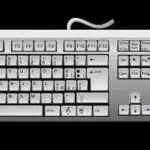
A keyboard is an input device used to enter letters, numbers, symbols, and commands into a computer by pressing keys.
Structure of the Keyboard
The following are major parts/sections found on a standard keyboard:
- Alphabetic (letter) keys for typing A to Z.
- Numeric keys for typing numbers (0 to 9) and related symbols.
- Function keys (F1 to F12) for special actions depending on the program.
- Cursor control/navigation keys for moving the cursor and navigating documents.
- Command/control keys for giving instructions such as delete, enter, and shift actions.
- Numeric keypad (on many desktop keyboards) for fast number entry.
Functions of the Keyboard
The following are functions of the keyboard:
- Entering text such as words, sentences, and paragraphs.
- Entering numbers for calculations and data entry.
- Entering symbols and special characters.
- Giving commands and shortcuts to control computer operations.
- Moving within documents and selecting items using navigation keys.
Key Groups on the Keyboard
The following are common groups of keys and their uses:
- Function keys: F1 to F12 used for special functions (example: F1 often opens help in many programs).
- Alphabetic keys: A to Z used for typing letters.
- Numeric keys: 0 to 9 used for typing numbers (top row numbers and numeric keypad where available).
- Special character keys: keys used to type symbols such as !, @, #, $, %, &, (, ), +, =, ?, and punctuation marks.
- Cursor control keys: Arrow keys, Home, End, Page Up, Page Down used to move the cursor and scroll through content.
- Command keys: Enter, Spacebar, Backspace, Delete, Shift, Ctrl, Alt, Caps Lock, Tab, Esc used to control typing and execute instructions.
Examples of Command Keys and Their Uses
The following are examples of command keys and their uses:
- Enter: starts a new line or confirms an action.
- Spacebar: inserts space between words.
- Backspace: removes the character to the left of the cursor.
- Delete: removes the character to the right of the cursor or deletes a selected item.
- Shift: types uppercase letters and the upper symbol on a key when held down.
- Caps Lock: types letters in uppercase until turned off.
- Ctrl and Alt: used with other keys to carry out shortcuts/commands.
- Tab: moves to the next field or creates indentation.
- Esc: cancels an operation or exits a menu in many programs.
Teaching Methods/Instructional Techniques
Discussion, Lecture, Demonstration, Question and Answer, Visual Aids
Instructional Procedures
Step 1: Introduction
Time: 5 minutes
Teaching Skill: Set Induction
Teacher’s Activity: The teacher displays a keyboard and asks pupils to name it and mention what it is used for, then links responses to the lesson topic.
Pupils’ Activity: Pupils identify the keyboard and respond to questions based on prior experience.
Learning Point: The keyboard is an input device used to enter data and commands into the computer.
Step 2: Definition and Structure of the Keyboard
Time: 6 minutes
Teaching Skill: Explanation
Teacher’s Activity: The teacher defines the keyboard and explains the major sections on a standard keyboard, pointing to each section on the displayed keyboard.
Pupils’ Activity: Pupils observe the keyboard, repeat the definition, and identify the major sections shown.
Learning Point: A keyboard has different sections made up of key groups used for typing and control.
Step 3: Functions of the Keyboard
Time: 8 minutes
Teaching Skill: Explanation and Illustration
Teacher’s Activity: The teacher states the functions of the keyboard and demonstrates typing letters, numbers, and symbols on the computer screen.
Pupils’ Activity: Pupils list the functions and observe how typed keys appear on the screen.
Learning Point: The keyboard is used for typing text, numbers, symbols, and issuing commands.
Step 4: Key Groups and Identification
Time: 8 minutes
Teaching Skill: Demonstration
Teacher’s Activity: The teacher guides pupils to identify function keys, alphabetic keys, numeric keys, special character keys, cursor control keys, and command keys on the keyboard.
Pupils’ Activity: Pupils point out the key groups on the keyboard and copy notes on each group.
Learning Point: Keys are grouped based on their functions and location on the keyboard.
Step 5: Demonstration of Command and Cursor Control Keys
Time: 8 minutes
Teaching Skill: Demonstration
Teacher’s Activity: The teacher demonstrates the use of Enter, Spacebar, Backspace, Delete, Shift, Caps Lock, Tab, and arrow keys on a simple document, showing the effect of each key.
Pupils’ Activity: Pupils observe and describe what each command key does on the screen.
Learning Point: Command keys and cursor control keys help in editing, navigation, and executing actions.
Step 6: Practical Activity (Guided Practice)
Time: 5 minutes
Teaching Skill: Guided Practice
Teacher’s Activity: The teacher guides pupils to practice typing letters and numbers, using Spacebar and Enter, and moving the cursor with arrow keys, ensuring correct hand placement and gentle pressing.
Pupils’ Activity: Pupils take turns to type and practice simple operations as guided.
Learning Point: Practice improves keyboard familiarity and correct operation.
Step 7: Evaluation/Review
Time: 5 minutes
Teaching Skill: Questioning/Assessment
Teacher’s Activity: The teacher evaluates the learning by asking the following questions:
- Define a keyboard.
- State three functions of the keyboard.
- List four key groups found on a keyboard.
- Explain the use of any two command keys.
Pupils’ Activity: Pupils answer orally and in writing.
Learning Point: Pupils demonstrate understanding of the lesson.
Step 8: Conclusion
Time: 0 minutes
Teaching Skill: Summarization
Teacher’s Activity: The teacher summarizes the meaning, structure, functions, and key groups of the keyboard and corrects misconceptions. Assignment: draw a keyboard layout and label at least five key groups, then write the uses of five command keys.
Pupils’ Activity: Pupils copy the summary and assignment.
Learning Point: Understanding keyboard parts and key groups supports effective typing and computer use.
Lesson Keywords
- Keyboard – An input device used to enter text, numbers, symbols, and commands into a computer.
- Function keys – Keys labeled F1 to F12 used for special functions depending on the program.
- Alphabetic keys – Keys used for typing letters A to Z.
- Numeric keys – Keys used for typing numbers 0 to 9.
- Special character keys – Keys used for typing symbols such as punctuation and signs.
- Cursor control keys – Keys used to move the cursor (arrow keys, Home, End, Page Up, Page Down).
- Command keys – Keys used to control actions (Enter, Shift, Ctrl, Alt, Backspace, Delete, Caps Lock, Tab, Esc).
Differentiation
Pupils who need support will focus on identifying key groups and typing simple letters and numbers, while advanced pupils will practice simple shortcuts using Ctrl and Alt and apply cursor control keys for navigation in a document.
Note for teachers using this lesson plan
Ensure pupils handle the keyboard carefully and avoid hitting keys forcefully. During practice, allow turns to reduce overcrowding and keep the class orderly. Emphasize examinable points: definition, structure, functions, and classification of key groups with examples.



Community Join the conversation Open discussion +