Class: Primary Three
Term: First Term
Subject: Basic Science and Technology
Curriculum Theme: Computer Studies
Previous Lesson: History of Computer, Napier, Pascaline and Charles Babbage
Topic: Input Devices
Content/Learning Area: Defining input devices, Identifying and listing input devices, Identifying parts of a computer
time Allocation: 40 minutes
Performance objectives
By the end of the lesson, pupils should be able to:
- Cognitive Domain:
1. Define input devices.
2. identify and list at least six input devices.
3. Identify ten parts of a computer.
- Affective Domain:
1. Show interest in learning about computers.
2. Participate actively in class discussions.
- Psychomotor Domain:
1. Use a keyboard to type simple words.
2. Use a mouse to click on screen objects.
- Social Domain:
1. Work cooperatively with peers.
2. Share ideas and details.
Reference Materials
- 9 – Years Basic Education Curriculum
- abuja Educational Resource Center Scheme of Work
- NAPPS national Unified Scheme of Work
- relevant Textbooks
Instructional Materials
To deliver this lesson, the teacher will employ the help of the following materials:
- Whiteboard or chart
- Markers or pens
- Pictures of input devices
- A computer (if available)
Rationale for the Lesson
Understanding input devices is crucial for interacting with computers. This lesson lays the foundation for future lessons on computer usage and technology literacy, equipping pupils with essential digital skills.
Prerequisite/Previous Knowledge
Pupils have basic knowledge of computers.
Lesson Content
Input Devices
Input devices are tools that let us give information to a computer. They’re like the computer’s ears and eyes, receiving information from us. The following are examples of input devices:
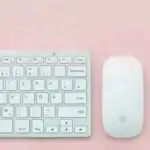
- Keyboard: For typing text, numbers, and symbols.
- Mouse: For navigating the screen, clicking, and selecting items.
- Microphone: For recording sound and speaking to the computer.
- Touchpad: Found on laptops, for navigating with fingers.
- Scanner: Converts physical documents into digital images.
- Camera: Captures images and videos.
- joystick: Controls games and applications.
- light Pen: For drawing and selecting on touchscreens.
- Touchscreen: Interacting with the computer by touching the screen.
- Barcode Reader: Scans barcodes to input product information.
- Graphics Tablet: Used for drawing and creating digital art.
Parts of the Computer
Computers have many parts; some are input devices. Here are some major parts:
- Monitor: The screen showing information.
- Keyboard: Used for typing.
- mouse: Used for navigation and selection.
- System Unit (SU): Houses the motherboard, CPU, and othre components.
- Hard Drive: Stores data and programs.
- Speakers: produce sound.
- Microphone: Records sound.
- Webcam: Captures images and videos.
- Memory (RAM): Temporary storage for data in use.
- Power Supply Unit (PSU): provides power.
- Motherboard: The main circuit board in the computer.
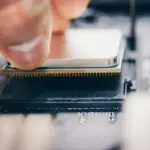
- Central Processing Unit (CPU): the “brain” of the computer.
Teaching Methods
To deliver this lesson, the teacher will adopt the following methods: Discussion,Question and answer,Presentation (if a computer is available)
Instructional Procedures
To deliver this lesson,the teacher will adopt the following steps:
Step 1: Introduction
Time: 5 minutes
Teaching Skill: Set Induction
Teacher’s Activity: Asks pupils what they know about computers and introduces the topic of input devices.
Pupils’ Activity: Respond to the teacher’s questions and listen attentively.
Step 2: Description of Key Concepts
Time: 10 minutes
Teaching Skill: Explaining
Teacher’s Activity: Explains the definition of input devices and provides examples.
Pupils’ Activity: Listen attentively and take notes.
Step 3: Demonstration/Guided Practice
Time: 10 minutes
Teaching Skill: Demonstrating
Teacher’s Activity: Shows pictures of different input devices and explains their functions. If a computer is available, demonstrates the use of a keyboard and mouse.
Pupils’ Activity: Observe the demonstration and ask questions.
Step 4: Autonomous Practice
time: 5 minutes
Teaching Skill: Monitoring
Teacher’s Activity: Guides pupils as they identify input devices from pictures or real-life examples.
Pupils’ Activity: Identify and list input devices.
Step 5: Note-Taking
Time: 5 minutes
Teaching Skill: Note-taking
Teacher’s Activity: Guides pupils in summarizing key concepts.
Pupils’ Activity: Write down key points and definitions.
Step 6: Evaluation/Review
Time: 5 minutes
Teaching Skill: Questioning
Teacher’s Activity: asks evaluation questions to assess understanding.
Pupils’ Activity: Answer the evaluation questions.
Objective-aligned checks:
- Define input devices.
- identify and list at least six input devices.
- Identify ten parts of a computer.
Step 7: Conclusion
Time: 5 minutes
Teaching Skill: Summarizing
Teacher’s Activity: Summarizes the key concepts of input devices and their importance in using computers. Assigns a short homework activity where pupils draw and label their favourite input device.
Pupils’ Activity: Listen to the summary and note the homework assignment.
Lesson Keywords
- Input Device – A tool that allows users to enter data into a computer.
- Keyboard – An input device used for typing text and characters.
- Mouse – An input device used for navigation and selection on a computer screen.
- Monitor – A display screen that shows information from the computer.
- System Unit – The main part of a computer that houses the essential components.
Lesson Evaluation
To evaluate the learning, the teacher asks pupils to:
- What are input devices?
- Name three input devices.
- how many computer parts can you name?
- List five computer parts.
- What is the difference between an input and an output device?
Assignment/Homework
- Draw and label yoru favorite input device.
- List five input devices and their uses.
- Write a short paragraph explaining why input devices are crucial.
Differentiation
- For slower learners: Provide one-on-one assistance and use simpler language.
- For advanced learners: encourage them to research additional input devices and their uses.
- For visual/auditory/kinesthetic learners: use visual aids, verbal explanations, and hands-on activities to cater to different learning styles.
Note for Teachers
Ensure to use real-life examples and visual aids to make the lesson engaging and understandable for primary three pupils. If a computer is available, allow pupils to interact with the input devices for a better learning experiance.