

Class: Junior Secondary School 1 (JSS 1 / JS1)
Term: 3rd Term
Week: 9
Age: 12 years
Duration: 45 minutes
Subject: Basic Science and Technology
Curriculum Theme: Computer Studies / Information Technology
Previous Lesson: Characteristics of Culture in Meaning and.
Topic: SCREEN POINTING DEVICES
Subject Matter: Definition of screen pointing devices, Types of screen pointing devices (Mouse, Trackball, Pointing Stick, Touchpad, Light Pen).
Specific Objectives
By the end of the lesson, pupils should be able to:
Cognitive Domain:
- Define screen pointing devices.
- List at least three types of screen pointing devices.
- Identify common examples of screen pointing devices.
Affective Domain:
- Appreciate the importance of pointing devices in interacting with computers and other digital devices.
- Value the different functionalities of various pointing devices.
Psychomotor Domain:
- Demonstrate the basic use of a mouse or touchpad.
- Point to different types of pointing devices when presented.
Social Domain:
- Collaborate with peers to identify and discuss different pointing devices.
Reference Materials
The following resources were used in planning this lesson:
- 9 Years Basic Education Curriculum
- State Unified Scheme of Work
- Basic Science and Technology for Junior Secondary Schools Book 1
- https://www.google.com/search?q=screen+pointing+devices
- https://www.youtube.com/results?search_query=screen+pointing+devices
Instructional Materials
The teacher will teach this lesson with the aid of:
- A computer or laptop with a mouse and touchpad.
- A smartphone (as an example of a device with a touchscreen/pointing capability).
- Pictures or diagrams of various pointing devices (trackball, light pen, pointing stick).
- A whiteboard and markers.
Rationale for the Lesson
This lesson helps pupils understand how they interact with computers and other digital devices. Learning about screen pointing devices enables them to identify and use different tools for navigation and control in their daily lives and for future academic work.
Prerequisite/Previous Knowledge
Pupils should have basic knowledge of what a computer is and some of its major parts like the monitor and keyboard.
Lesson Content/Board Summary
SCREEN POINTING DEVICES
Definition of Screen Pointing Devices
Screen pointing devices are input devices that allow a user to control a pointer or cursor on a screen. They help users to select items, draw, or move objects on a computer monitor or other display screens.
Types of Screen Pointing Devices
The following are common types of screen pointing devices:
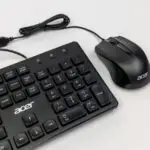
- Mouse: This is a handheld device that controls a cursor on a computer screen as it is moved across a flat surface. It typically has two buttons and a scroll wheel.
- Trackball: A trackball is like an upside-down mouse. It has a ball on top that the user rotates with their thumb or fingers to move the cursor on the screen. The device itself remains stationary.
- Pointing Stick: This is a small, joystick-like device found on some laptop keyboards, usually between the G, H, and B keys. Pressure applied to the stick moves the cursor.
- Touchpad: A touchpad (also called a trackpad) is a flat, rectangular surface sensitive to touch. Users move their finger across it to control the cursor on a laptop or other device.
- Light Pen: A light pen is a light-sensitive input device used with a computer’s CRT display. It allows the user to point to displayed objects or draw on the screen by directly touching the screen with the pen.
Teaching Methods/Instructional Techniques
Discussion, Lecture, Demonstration, Question and Answer, Visual Aids
Instructional Procedures
Step 1: Introduction
Time: 5 minutes
Teaching Skill: Set Induction
Teacher’s Activity: The teacher greets the pupils and asks them how they control what they see on a computer screen or a smartphone. The teacher then introduces the topic: “Screen Pointing Devices.”
Pupils’ Activity: Pupils respond to the questions and listen attentively to the introduction.
Learning Point: Pupils are introduced to the topic and its relevance.
Step 2: Definition of Screen Pointing Devices
Time: 10 minutes
Teaching Skill: Explanation/Definition
Teacher’s Activity: The teacher explains what screen pointing devices are, using simple language and practical examples like pointing at an icon on a phone. The teacher writes the definition on the board.
Pupils’ Activity: Pupils listen, ask questions, and copy the definition into their notes.
Learning Point: Pupils learn the definition of screen pointing devices.
Step 3: Types of Screen Pointing Devices (Mouse and Trackball)
Time: 10 minutes
Teaching Skill: Demonstration/Explanation
Teacher’s Activity: The teacher introduces the mouse and trackball. The teacher demonstrates how to use a real mouse and a trackball (if available, or uses pictures/diagrams) and explains their functions. The teacher writes the names and brief descriptions on the board.
Pupils’ Activity: Pupils observe the demonstrations, identify the devices, and copy the notes.
Learning Point: Pupils identify and understand the use of a mouse and trackball.
Step 4: Types of Screen Pointing Devices (Pointing Stick and Touchpad)
Time: 7 minutes
Teaching Skill: Explanation/Visual Aids
Teacher’s Activity: The teacher introduces the pointing stick and touchpad. The teacher shows pictures or a laptop with a touchpad and explains how these devices work. The teacher adds their names and descriptions to the board summary.
Pupils’ Activity: Pupils observe the visuals, listen to the explanations, and copy the notes.
Learning Point: Pupils identify and understand the use of a pointing stick and touchpad.
Step 5: Types of Screen Pointing Devices (Light Pen)
Time: 5 minutes
Teaching Skill: Explanation/Visual Aids
Teacher’s Activity: The teacher introduces the light pen. The teacher explains its function with the aid of pictures or diagrams, highlighting its use for drawing or selecting directly on older screens. The teacher adds it to the board summary.
Pupils’ Activity: Pupils listen, observe the visuals, and copy the notes.
Learning Point: Pupils identify and understand the use of a light pen.
Step 6: Class Discussion and Examples
Time: 3 minutes
Teaching Skill: Questioning/Facilitation
Teacher’s Activity: The teacher leads a brief discussion, asking pupils to identify pointing devices they use daily (e.g., smartphone touchscreens). The teacher clarifies any misconceptions.
Pupils’ Activity: Pupils participate in the discussion and provide examples from their experiences.
Learning Point: Pupils connect the lesson to real-world applications.
Step 7: Evaluation/Review
Time: 5 minutes
Teaching Skill: Questioning/Assessment
Teacher’s Activity: The teacher evaluates the learning by asking the following questions:
- What are screen pointing devices?
- Mention three types of screen pointing devices.
- Which pointing device is commonly found on laptops?
- Give an example of a device you use daily that involves a pointing action.
Pupils’ Activity: Pupils answer orally and in writing.
Learning Point: Pupils demonstrate understanding of the lesson.
Step 8: Conclusion
Time: 2 minutes
Teacher’s Activity: The teacher summarizes the main points of the lesson, emphasizing the importance of pointing devices. The teacher assigns homework: “Draw and label a computer mouse.”
Pupils’ Activity: Pupils listen to the summary and copy the homework.
Learning Point: Pupils review the lesson and receive homework.
Home Task: Record two correct examples of SCREEN POINTING DEVICES from the lesson or home environment and explain each in your own words.
Lesson Keywords
- Pointing Device – An input device that allows a user to control a pointer on a screen.
- Mouse – A common handheld pointing device for computers.
- Trackball – A stationary pointing device with a ball on top for cursor control.
- Touchpad – A flat, touch-sensitive surface used for cursor control, often on laptops.
- Light Pen – An input device used to select or draw directly on a display screen.
Differentiation
For pupils who grasp concepts quickly, the teacher can challenge them to explain the advantages and disadvantages of different pointing devices. For those needing more support, the teacher will provide additional visual aids and simplified explanations, ensuring they can at least identify and name the devices.
Note for teachers using this lesson plan
Teachers should ensure they have actual examples or clear pictures of each pointing device to make the lesson practical and engaging. Encourage pupils to share their experiences with different devices. Hands-on demonstration, especially with a mouse and touchpad, is highly recommended.
Community Join the conversation Open discussion +