

Class: Senior Secondary School 1 (SS1, SS 1, SSS1, SSS 1)
Term: 3rd Term
Week: 10
Age: 15 years
Duration: 45 minutes
Subject: Technical Drawing
Curriculum Theme: Technical Drawing
Previous Lesson: Oblique Drawing: Cabinet and Cavalier Methods.
Topic: INTRODUCTION TO COMPUTER GRAPHICS
Subject Matter: use of computer for lettering, drawing lines and angles, drawing plane figures, pictorial drawings, enlargement and reduction of figures, basic use of graphics software for drawing tasks
Specific Objectives
By the end of the lesson, pupils should be able to:
Cognitive Domain:
- Define computer graphics in the context of technical drawing.
- State at least three uses of computers in technical drawing.
- Identify common graphics software used for technical drawing tasks.
Affective Domain:
- Appreciate the importance of computer graphics in modern technical drawing.
- Develop an interest in using computer software for drawing tasks.
Psychomotor Domain:
- Demonstrate basic computer operations for lettering and drawing lines.
- Perform simple drawing tasks such as drawing plane figures or angles using graphics software (where available).
Social Domain:
- Collaborate with peers when exploring computer graphics tools.
Reference Materials
The following resources were used in planning this lesson:
- 9 Years Basic Education Curriculum for Technical Drawing.
- State Unified Scheme of Work for Technical Drawing (SSS 1).
- Akinola, O.O. (2018). New General Technical Drawing for Senior Secondary Schools 1. University Press PLC.
- Internet resources on computer graphics for technical drawing.
Instructional Materials
The teacher will teach this lesson with the aid of:
- Computer lab setup
- Sample graphics software (e.g., AutoCAD, SketchUp, LibreCAD, Inkscape)
- Projector or screen
- Practice files for basic drawing tasks
- Whiteboard and markers
Rationale for the Lesson
This lesson helps pupils understand how computers are used in technical drawing, which is important for modern design and engineering. It introduces them to basic computer-aided drawing skills that are relevant in today’s world.
Prerequisite/Previous Knowledge
Pupils should have basic knowledge of manual technical drawing, including lettering, drawing lines, angles, and plane figures. They should also have basic computer literacy.
Lesson Content/Board Summary
INTRODUCTION TO COMPUTER GRAPHICS
Definition of Computer Graphics
Computer graphics in technical drawing refers to the use of computers and specialized software to create, modify, analyze, and document technical drawings and designs. It allows for precision, speed, and flexibility in drawing tasks.
Uses of Computer in Technical Drawing
The following are common uses of computers in technical drawing:
- Creating precise technical drawings (e.g., architectural, mechanical, electrical).
- Performing lettering and annotation on drawings.
- Drawing lines, angles, and various geometric shapes.
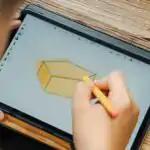
- Producing plane figures and pictorial drawings (e.g., isometric, oblique).
- Enlarging or reducing figures and designs accurately.
- Simulating and analyzing designs before physical production.
- Storing, retrieving, and sharing drawing files easily.
Basic Operations in Computer Graphics for Technical Drawing
Using graphics software, a computer can perform various drawing operations:
- **Lettering:** Creating text for titles, labels, and dimensions with various fonts and sizes.
- **Drawing Lines and Angles:** Generating straight lines, polylines, curves, and specific angles with high accuracy.
- **Drawing Plane Figures:** Constructing 2D shapes like squares, rectangles, circles, ellipses, and polygons.
- **Pictorial Drawings:** Creating 3D representations such as isometric, oblique, and perspective views from 2D drawings.
- **Enlargement and Reduction of Figures:** Scaling drawings up or down without distortion, maintaining proportions.
Basic Use of Graphics Software
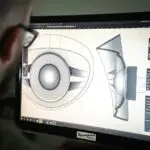
Graphics software (e.g., AutoCAD, SketchUp, LibreCAD) provides tools and commands to perform the above operations. Users learn to navigate the interface, select drawing tools, input dimensions, and save their work.
Teaching Methods/Instructional Techniques
Discussion, Lecture, Demonstration, Question and Answer, Visual Aids
Instructional Procedures
Step 1: Introduction
Time: 5 minutes
Teaching Skill: Set Induction
Teacher’s Activity: The teacher greets the pupils and asks them to recall the importance of accuracy in manual technical drawing. The teacher then introduces the topic “Introduction to Computer Graphics” by asking pupils if they have ever seen drawings made with a computer and what advantages they think it might offer over manual drawing.
Pupils’ Activity: Pupils respond to the questions, sharing their ideas about computer-aided drawing.
Learning Point: Pupils are engaged and link previous knowledge to the new topic.
Step 2: Definition and Overview
Time: 10 minutes
Teaching Skill: Explanation/Elucidation
Teacher’s Activity: The teacher defines computer graphics in the context of technical drawing. The teacher explains that it involves using computers and software to create, modify, and manage technical drawings. The teacher highlights that this method offers precision, speed, and ease of modification.
Pupils’ Activity: Pupils listen attentively, ask questions for clarification, and take notes.
Learning Point: Pupils understand the basic definition and concept of computer graphics in technical drawing.
Step 3: Uses of Computer in Technical Drawing
Time: 10 minutes
Teaching Skill: Discussion/Listing
Teacher’s Activity: The teacher leads a discussion on various applications of computers in technical drawing. The teacher lists and explains practical uses such as creating precise drawings, lettering, generating 3D views, and scaling drawings. The teacher may show quick examples using a projector.
Pupils’ Activity: Pupils contribute to the discussion by mentioning uses they know or have observed. They also note down the various uses.
Learning Point: Pupils identify and understand the practical applications of computer graphics in technical drawing.
Step 4: Basic Operations – Lettering and Drawing Lines/Angles
Time: 10 minutes
Teaching Skill: Demonstration/Practical Application
Teacher’s Activity: The teacher demonstrates basic operations using a computer and graphics software projected on a screen. The teacher shows how to perform lettering, draw straight lines, and create angles accurately. If a computer lab is available, pupils are guided to practice these operations.
Pupils’ Activity: Pupils observe the demonstration carefully. If resources allow, they follow along and practice the basic lettering and line drawing tasks on computers.
Learning Point: Pupils learn and practice fundamental computer-aided drawing operations for lettering and lines/angles.
Step 5: Basic Operations – Drawing Plane Figures and Pictorials
Time: 5 minutes
Teaching Skill: Demonstration/Explanation
Teacher’s Activity: The teacher continues the demonstration, showing how to draw basic plane figures (e.g., rectangles, circles) and briefly explains how pictorial drawings can be generated or aided by software. The teacher emphasizes the precision and speed gained.
Pupils’ Activity: Pupils observe the demonstration and ask questions about the tools and techniques shown.
Learning Point: Pupils understand how to create plane figures and the concept of pictorial drawings using computer graphics software.
Step 6: Enlargement/Reduction and Graphics Software
Time: 5 minutes
Teaching Skill: Explanation/Illustration
Teacher’s Activity: The teacher explains how computer graphics software allows for easy enlargement and reduction of figures without distortion. The teacher also mentions specific examples of graphics software commonly used in technical drawing (e.g., AutoCAD, SketchUp) and their general functions.
Pupils’ Activity: Pupils listen and note down the names of the software and the benefits of digital scaling.
Learning Point: Pupils learn about digital scaling and identify common graphics software.
Step 7: Evaluation/Review
Time: 5 minutes
Teaching Skill: Questioning/Assessment
Teacher’s Activity: The teacher evaluates the learning by asking the following questions:
- Define computer graphics in the context of technical drawing.
- Mention three uses of computers in technical drawing.
- List two basic operations you can perform with computer graphics software.
- Name one example of graphics software used for technical drawing.
Pupils’ Activity: Pupils answer orally and in writing.
Learning Point: Pupils demonstrate understanding of the lesson.
Step 8: Conclusion
Time: 5 minutes
Teaching Skill: Summarization/Consolidation
Teacher’s Activity: The teacher summarizes the key points of the lesson, reiterating the importance of computer graphics in modern technical drawing. The teacher encourages pupils to explore more about technical drawing software. Homework: Research two other graphics software applications used in engineering or architecture.
Pupils’ Activity: Pupils listen to the summary and copy down the homework.
Learning Point: Pupils consolidate their learning and are encouraged to continue exploring the topic.
Lesson Keywords
- Computer Graphics – The use of computers and software to create and manipulate images and designs.
- Technical Drawing – Detailed drawing that shows how something is constructed or works, often used in engineering and architecture.
- Lettering – The process of adding text or annotations to a drawing.
- Plane Figures – Two-dimensional geometric shapes like squares, circles, and triangles.
- Pictorial Drawings – Drawings that show an object in three dimensions, like isometric or oblique views.
- Graphics Software – Computer programs designed for creating and editing images or designs (e.g., AutoCAD).
Differentiation
For pupils who grasp concepts quickly, the teacher can provide more complex practice tasks or encourage them to explore advanced features of the software. For those needing more support, the teacher will provide simplified instructions, one-on-one guidance during practical sessions, and pair them with stronger pupils for collaborative learning.
Note for teachers using this lesson plan
Ensure that the computer lab setup is functional before the lesson. If a computer lab is not available, use visual aids, videos, and detailed descriptions to simulate the software demonstration. Emphasize the connection between manual drawing principles and their digital application. Encourage pupils to ask questions and explore the software interface if possible.


Community Join the conversation Open discussion +