

Class: Senior Secondary School 2 (SS2 / SSS2)
Term: 2nd Term
Week: 6
Age: 16 years
Duration: 45 minutes
Subject: Technical Drawing
Curriculum Theme: Introduction to Computer Aided Design
Previous Lesson: Auxiliary View of Geometrical Solids: Truncated Pyramids and Prisms.
Topic: COMPUTER AIDED DRAWING
Subject Matter: Meaning of computer aided drawing, isometric drawing using computer, oblique drawing using computer, perspective drawing using computer
Specific Objectives
By the end of the lesson, pupils should be able to:
Cognitive Domain:
Instructional Materials
The teacher will teach this lesson with the aid of:
- Computers
- Projector
- CorelDraw (or other relevant drawing software)
- Harvard Graphics (or other relevant presentation software)
- Sample CAD drawings of isometric, oblique, and perspective views
Rationale for the Lesson
This lesson helps pupils understand how technology can be used in technical drawing. It enables them to apply computer skills to create accurate and professional technical drawings, which is important for future careers in engineering and design.
Prerequisite/Previous Knowledge
Pupils should have prior knowledge of manual isometric, oblique, and perspective drawing techniques.
Lesson Content/Board Summary
COMPUTER AIDED DRAWING (CAD)
Meaning of Computer Aided Drawing (CAD)
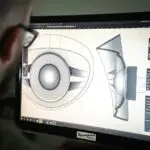
Computer Aided Drawing (CAD) is the use of computer systems to assist in the creation, modification, analysis, or optimization of a design. CAD software helps designers and engineers to create precise 2D and 3D drawings and models digitally, replacing traditional manual drafting methods.
Advantages of CAD
The following are advantages of using CAD:
- Increased accuracy and precision in drawings.
- Faster design and drafting process.
- Easier modification and revision of designs.
- Improved communication through clear and consistent drawings.
- Reduced errors and waste of materials.
- Ability to create 3D models and simulations.
Isometric Drawing using CAD
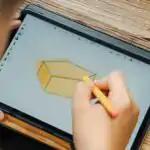
Isometric drawing is a type of axonometric projection where the object is rotated so that all three axes (X, Y, Z) appear equally foreshortened, making angles of 120 degrees with each other. In CAD, isometric drawings are created by:
- Using isometric snapping and grid settings to align lines at 30-degree angles.
- Drawing isometric circles as ellipses with specific aspect ratios.
- Extruding 2D profiles along an isometric axis to form 3D-like views.
- Utilizing dedicated isometric drawing tools available in many CAD software packages.
Oblique Drawing using CAD
Oblique drawing is a simple type of pictorial drawing where the front face of the object is drawn true size, and the receding lines are drawn at an angle (often 30, 45, or 60 degrees) to the horizontal. In CAD, oblique drawings are created by:
- Drawing the front view of the object accurately.
- Projecting receding lines from the corners of the front view at the chosen oblique angle.
- Setting the length of receding lines to full size (cavalier oblique) or half size (cabinet oblique) using scaling tools.
- Using construction lines and geometric tools to define the depth of the object.
Perspective Drawing using CAD
Perspective drawing is a drawing technique used to create the illusion of depth and distance on a two-dimensional surface. It mimics how the human eye sees objects, with objects appearing smaller as they recede into the distance. In CAD, perspective drawings are created by:
- Defining one-point, two-point, or three-point perspective settings.
- Placing vanishing points on the horizon line.
- Drawing lines that converge towards the vanishing points.
- Using CAD’s 3D modeling capabilities to generate perspective views automatically from a 3D model, allowing for different camera angles and focal lengths.
Teaching Methods/Instructional Techniques
Discussion, Lecture, Demonstration, Question and Answer, Visual Aids
Instructional Procedures
Step 1: Introduction
Time: 5 minutes
Teaching Skill: Set Induction
Teacher’s Activity: The teacher greets the pupils and asks them to recall what they learned about manual isometric, oblique, and perspective drawing in the previous lesson. The teacher then introduces the topic of Computer Aided Drawing (CAD) as a modern way of creating these drawings.
Pupils’ Activity: Pupils respond to the questions and listen attentively to the introduction.
Learning Point: Pupils connect previous knowledge to the new topic and understand the relevance of CAD.
Step 2: Meaning of Computer Aided Drawing (CAD)
Time: 7 minutes
Teaching Skill: Explanation/Definition
Teacher’s Activity: The teacher explains the meaning of Computer Aided Drawing (CAD) and discusses its general advantages over manual drafting, using examples where possible.
Pupils’ Activity: Pupils listen, take notes, and ask questions for clarification.
Learning Point: Pupils understand what CAD is and its benefits.
Step 3: Introduction to CAD Software
Time: 7 minutes
Teaching Skill: Demonstration
Teacher’s Activity: The teacher briefly introduces a CAD software (e.g., CorelDraw, or other suitable drawing software) and points out basic interface elements relevant to drawing.
Pupils’ Activity: Pupils observe the software interface displayed on the projector and identify key tools.
Learning Point: Pupils become familiar with the basic environment of a CAD software.
Step 4: Isometric Drawing using CAD
Time: 8 minutes
Teaching Skill: Demonstration
Teacher’s Activity: The teacher demonstrates how to create a simple isometric drawing using the CAD software, highlighting the use of isometric grids, angles, and tools.
Pupils’ Activity: Pupils observe the demonstration carefully, asking questions about the steps.
Learning Point: Pupils learn the basic steps for creating isometric drawings in CAD.
Step 5: Oblique Drawing using CAD
Time: 8 minutes
Teaching Skill: Demonstration
Teacher’s Activity: The teacher demonstrates how to create a simple oblique drawing using the CAD software, emphasizing drawing the front face and then projecting receding lines at a chosen angle.
Pupils’ Activity: Pupils pay attention to the teacher’s demonstration and make mental notes of the process.
Learning Point: Pupils learn how to construct oblique drawings using CAD tools.
Step 6: Perspective Drawing using CAD
Time: 8 minutes
Teaching Skill: Demonstration
Teacher’s Activity: The teacher demonstrates how to set up and create a simple perspective drawing (e.g., one-point perspective) using the CAD software, explaining vanishing points and converging lines.
Pupils’ Activity: Pupils watch the demonstration, understanding how perspective is achieved digitally.
Learning Point: Pupils grasp the principles of creating perspective drawings with CAD.
Step 7: Evaluation/Review
Time: 5 minutes
Teaching Skill: Questioning/Assessment
Teacher’s Activity: The teacher evaluates the learning by asking the following questions:
- Define Computer Aided Drawing (CAD).
- State two advantages of using CAD over manual drafting.
- Briefly explain how you would start an isometric drawing in a CAD software.
- What is the main difference between oblique and perspective drawings in terms of how objects recede?
Pupils’ Activity: Pupils answer orally and in writing.
Learning Point: Pupils demonstrate understanding of the lesson.
Step 8: Conclusion
Time: 2 minutes
Teaching Skill: Summarization
Teacher’s Activity: The teacher summarizes the key points of the lesson, reiterating the importance of CAD in modern technical drawing and encourages pupils to practice using CAD software. The teacher assigns homework for pupils to research other types of CAD software.
Pupils’ Activity: Pupils listen to the summary and copy down the homework.
Learning Point: Pupils consolidate their understanding of CAD and are encouraged to explore further.
Lesson Keywords
- CAD – Computer Aided Drawing, the use of computer systems to assist in design.
- Isometric Drawing – A pictorial drawing where three axes are equally foreshortened, showing an object in 3D.
- Oblique Drawing – A pictorial drawing where the front face is true size and receding lines are at an angle.
- Perspective Drawing – A drawing technique creating the illusion of depth and distance on a 2D surface, mimicking how the eye sees.
- Vanishing Point – A point on the horizon where parallel lines appear to converge in perspective drawing.
Differentiation
For struggling learners, the teacher will provide simplified step-by-step guides for creating basic shapes in CAD and offer more direct supervision during practice sessions. Advanced learners will be challenged to explore more complex CAD features, experiment with different perspective views (e.g., two-point perspective), or research industry-standard CAD software like AutoCAD or SolidWorks.
Note for teachers using this lesson plan
Ensure that the computers are functional and the chosen CAD software (e.g., CorelDraw, or a more appropriate CAD software if available) is installed and ready for use. Practical demonstration is key for this topic. If actual computer access is limited, use a projector to display the software interface and demonstrate the steps clearly. Encourage pupils to take detailed notes during demonstrations. Be prepared to answer questions about specific software tools and general CAD principles.


Community Join the conversation Open discussion +