

class: Primary 6
Term: 2nd Term
Subject: Basic Science And Technology
Curriculum Theme: Computer Studies
Previous Lesson: Using Drawing Tools, Pencil, Eraser, Filling Color And Text Tool When Drawing With Paint Artist
Topic: Using Drawing Tools: Color Picker, Triangular Tool, Magnifier, Line, and Rectangular Tool When Drawing with Paint Artist
Content/learning Area: Using drawing tools such as the color picker, triangular tool, magnifier, line tool, and rectangular tool to create digital drawings in Paint Artist.
Time Allocation: 40 minutes
Performance Objectives
By the end of the lesson, pupils should be able to:
- Cognitive Domain: Identify and explain the functions of the color picker, triangular tool, magnifier, line tool, and rectangular tool.
- Affective Domain: Appreciate the importance of using different drawing tools in digital art creation.
- Psychomotor Domain: Demonstrate how to use the drawing tools effectively in Paint Artist.
- Social Domain: Work in pairs to complete a drawing using the tools learned in the lesson.
Reference Materials
The following resources were used in planning this lesson:
- 9 – Years Basic Education Curriculum (Abuja)
- Educational Resource Center Scheme of Work
- NAPPS national Unified scheme of work
- Online Facts from: Microsoft Learn – How to: Use a Drawing Tool | Microsoft Learn
- Relevant Textbooks
Instructional Materials
To deliver this lesson, the teacher will use the following materials:
- A computer with Paint Artist installed
- Projector or chart showing the different drawing tools
- Printed images illustrating the use of each tool
- whiteboard and markers
Rationale for the Lesson
Understanding how to use drawing tools in Paint Artist helps pupils develop digital creativity, improve their computer skills, and prepare them for more advanced graphic design tasks in the future. These skills are essential in today’s digital world.
Prerequisite/Previous Knowledge
Pupils have already learned how to use the pencil, eraser, fill color, and text tool in Paint artist. Thay are familiar with basic drawing operations on a computer.
lesson Content
Using Drawing Tools: Color Picker, Triangular Tool, Magnifier, Line, and Rectangular Tool
Drawing with Paint Artist is a way to create digital images using different tools.Each tool has a special function that helps to make drawings easier and more detailed. Let’s look at how to use some important tools:
1. Color Picker Tool
The color picker tool is used to select a color from an existing drawing and use it again without guessing.
How to use the color picker tool:
- Click on the color picker.
- Click on any color in your drawing to use it.
2. Triangular Tool
The triangular tool is used to draw perfect triangles.
How to use the triangular tool:
- Select the triangular shape from the shape tools.
- Click and drag to draw.
3.Magnifier Tool
The magnifier helps to zoom in on small details in a drawing.How to use the magnifier tool:
- Click on the magnifier tool.
- Click on the area you want to zoom in.
4. Line Tool
The line tool is used to draw straight lines easily.
How to use the line tool:
- Select the line tool.
- Click on the canvas and drag to draw a straight line.
5. Rectangular Tool
the rectangular tool is used to draw rectangles or squares.
How to use the rectangular tool:
- Select the rectangle shape.
- Click and drag to draw.
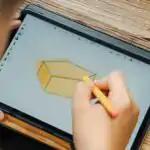
Paint Drawing Tools and Their Outputs
The colour picker samples a colour already on the canvas; the magnifier enlarges the view without enlarging the actual object; the line and rectangle tools draw controlled shapes. A triangular shape may be selected from a shapes gallery rather than being a universal separate tool in every program.
Tool names and positions vary by software version. Demonstrate the icon, the action and the visible output, then ask pupils to choose the correct tool for a stated task.
Teaching Methods
To deliver this lesson, the teacher will adopt the following methods: Discussion, Demonstration, guided Practice, Hands-on Activity, Clarification, Questioning, Oral Review, Summary, Reflection.
Instructional Procedures
To deliver this lesson, the teacher will adopt the following steps:
Step 1: Introduction (Set Induction)
Time: 5 mins
Teaching Skill: Set Induction
Teacher’s Activity: Asks pupils to recall previous tools used in Paint Artist and introduces new tools with questions.
Pupils’ Activity: Pupils recall previous lessons and answer questions.
Step 2: Explanation of Tools
Time: 10 mins
Teaching Skill: Explanation
teacher’s Activity: Explains the functions of the color picker, triangular tool, magnifier, line tool, and rectangular tool.
pupils’ Activity: Pupils listen and observe.
Step 3: Demonstration of Each Tool
Time: 10 mins
Teaching Skill: Demonstration
Teacher’s Activity: Shows pupils how to use each tool by drawing simple shapes and lines.
Pupils’ Activity: pupils watch and ask questions.
Step 4: Guided Practice
Time: 5 mins
Teaching Skill: Hands-on Activity
Teacher’s Activity: Guides pupils to practice using the tools in pairs.
pupils’ Activity: Pupils practice in pairs using Paint Artist.
Step 5: Note-Taking
time: 5 mins
Teaching Skill: Writing
Teacher’s Activity: Writes summary on board for pupils to copy.
Pupils’ Activity: Pupils copy notes into their notebooks.
Step 6: Evaluation/Review
Time: 3 mins
Teaching Skill: Questioning
Teacher’s Activity: Asks pupils to name and explain the tools used.
Pupils’ activity: Pupils respond to questions.
Objective-aligned checks:
- Identify and explain the functions of the color picker, triangular tool, magnifier, line tool, and rectangular tool.
- Demonstrate how to use the drawing tools effectively in Paint Artist.
Step 7: Conclusion
Time: 2 mins
Teaching Skill: Summary
Teacher’s Activity: Summarizes the lesson and links it to real-life applications.
Pupils’ activity: Pupils listen attentively.
Lesson Keywords
- Color Picker – A tool to select and reuse colors from an image.
- Triangular Tool – A tool to draw triangles.
- Magnifier Tool – A tool to zoom in on details.
- Line Tool – A tool to draw straight lines.
- Rectangular Tool – A tool to draw rectangles and squares.
Lesson Evaluation
To evaluate the learning, the teacher asks pupils to:
- What is the function of the color picker tool in Paint Artist?
- How can you use the triangular tool to draw a triangle?
- Why is the magnifier tool important in drawing?
- How do you draw a straight line using the line tool?
- What steps are involved in using the rectangular tool?
Assignment/Homework
- draw a simple house using the line and rectangular tools in Paint artist.
- Use the color picker tool to select colors from an image and apply them to your drawing.
- Write a short paragraph explaining how you used the magnifier tool to add details to your drawing.
Differentiation
- For slower learners: Provide step-by-step guidance and allow them to practice multiple times.
- For advanced learners: Ask them to create a simple picture using all the tools discussed.
- For visual/auditory/kinesthetic learners: Use visual aids, verbal explanations, and hands-on activities to cater to different learning styles.
Note for Teachers
Ensure pupils get hands-on experience using the tools rather than just watching demonstrations. Encourage creativity by allowing them to


Community Join the conversation Open discussion +