

Note for teachers using this lesson plan
Before this lesson, prepare visual aids such as charts, a complete computer system, and individual hardware components like a CPU, motherboard, RAM, and keyboard. The central concept is understanding the fundamental difference and interdependence of hardware and software. Emphasise safe handling practices for computer components. By the end of the lesson, learners should be able to identify key hardware and software examples and explain how they work together.
Class: SS 1
Term: First Term
Week: 2
Age: 15 years
Duration: 60 minutes
Subject: Computer Hardware and GSM Repairs
Curriculum Theme: Fundamentals of Computer Hardware
Focal competence: Demonstrate good understanding of Basic Computer Hardware and GSM System
Key competencies/values: Communication; ICT and Digital Competencies; Digital Competencies
Skills:
- Identifying hardware and software of a computer system
Previous Lesson: Computer Hardware and Software, Types of Application Software
Topic: Introduction To Hardware And Software: Computer System And Application Software
Subject Matter: Computer system and application software
Specific Objectives
By the end of the lesson, pupils/students should be able to:
Cognitive Domain
- Enumerate different examples of system and application software.
- Discuss the relationship between hardware and software in system operation.
Affective Domain
- Participate actively in class discussions about computer components.
- Appreciate the importance of safe handling of computer hardware.
Psychomotor Domain
- Identify relevant physical components of a computer system.
- Relate each physical part to its basic function.
Social Domain
- Collaborate effectively in group discussions on hardware and software relationships.
- Demonstrate fault-awareness practices during practical observation.
Reference Materials
The following resources were used in planning this lesson:
- 2025 New Revised Senior Secondary Education Curriculum (SSEC)
- Relevant State Unified Scheme of Work
- A suitable Computer Studies textbook for SS 1
- The HeadTeacher Scheme of work For The New Revised Senior Secondary Education Curriculum (SSEC)
Instructional Materials
The teacher will teach this lesson with the aid of:
- A complete computer system (desktop or laptop)
- Individual computer hardware components (e.g., CPU, Motherboard, RAM, Keyboard, Mouse, Monitor)
- Charts illustrating hardware and software concepts
- Smart board or whiteboard
Rationale for the Lesson
This lesson is essential for students to build a foundational understanding of how computers work by distinguishing between their physical parts (hardware) and the programs that make them function (software). This knowledge is crucial for diagnosing basic computer issues and forms a bedrock for advanced topics in computer hardware and GSM repairs.
Prerequisite/Previous Knowledge
Students should have basic knowledge of what a computer is and some common uses of computers in everyday life.
Lesson Content/Board Summary
Introduction To Hardware And Software: Computer System And Application Software
Computer Hardware
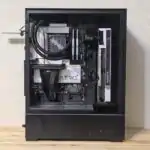
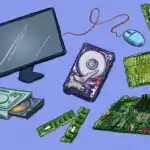
Computer hardware refers to the physical, tangible components of a computer system that can be seen and touched. These are the electronic and mechanical parts that make up the computer.
Examples of computer hardware include:
- Central Processing Unit (CPU): The “brain” of the computer that performs most of the processing.
- Motherboard: The main circuit board that connects all hardware components.
- Random Access Memory (RAM): Volatile memory used for temporary storage of data and programs currently in use.
- Hard Disk Drive (HDD) / Solid State Drive (SSD): Storage devices for permanent storage of data and operating systems.
- Keyboard: An input device used to enter text and commands.
- Mouse: A pointing device used to control the cursor on the screen.
- Monitor: An output device that displays visual information.
- Printer: An output device that produces hard copies of documents.
- Speakers: Output devices that produce audio.
Computer Software
Computer software refers to the set of instructions, data, or programs used to operate computers and execute specific tasks. It is the non-physical component of a computer system.
Examples of computer software include:
- Operating Systems (e.g., Windows, macOS, Linux, Android, iOS)
- Word Processors (e.g., Microsoft Word, Google Docs)
- Spreadsheet Programs (e.g., Microsoft Excel, Google Sheets)
- Web Browsers (e.g., Chrome, Firefox, Edge)
- Antivirus Software
- Video Games
Types of Software
Software can be broadly categorised into two main types:
- System Software: This type of software manages and controls the computer hardware and provides a platform for application software to run. It is essential for the computer to function.
- Operating System (OS): The most important system software, managing all hardware and software resources. Examples include Windows, macOS, Linux, Android, and iOS.
- Device Drivers: Software that allows the operating system to communicate with hardware devices (e.g., printer driver, graphics card driver).
- Utility Software: Programs that help manage, maintain, and control computer resources (e.g., antivirus software, disk defragmenter, file compression tools).
- Application Software: This type of software is designed to perform specific tasks for the user. It helps users accomplish particular activities.
- Word Processing Software: Used for creating, editing, and formatting text documents. Examples: Microsoft Word, Google Docs, LibreOffice Writer.
- Spreadsheet Software: Used for organising, analysing, and storing data in tabular form. Examples: Microsoft Excel, Google Sheets, LibreOffice Calc.
- Presentation Software: Used for creating slideshows and presentations. Examples: Microsoft PowerPoint, Google Slides, LibreOffice Impress.
- Graphic Design Software: Used for creating and manipulating images and designs. Examples: Adobe Photoshop, CorelDRAW, GIMP.
- Computer-Aided Design (CAD) Software: Used by engineers and architects to design and draft 2D and 3D models. Examples: AutoCAD, SolidWorks.
- Web Browsers: Used to access and view websites on the internet. Examples: Google Chrome, Mozilla Firefox, Microsoft Edge.
Relationship Between Hardware and Software
Hardware and software are interdependent; neither can function effectively without the other. They work together as a complete system to perform tasks.
- Hardware needs Software: Hardware is just a collection of inert components without software. It needs software (like an operating system) to tell it what to do and how to do it. For example, a keyboard (hardware) needs a keyboard driver (software) to send input to the computer.
- Software needs Hardware: Software cannot be executed without hardware. It needs the physical components (CPU, RAM, storage) to run and store its instructions and data. For example, a word processing program (software) needs a CPU to process text and RAM to temporarily store the document.
- Interaction: The operating system acts as an intermediary, managing the interaction between application software and hardware. When you click an icon (software action), the OS translates this into instructions for the CPU (hardware) to launch the program.
- Mobile Phones: The same relationship applies to mobile phones. The phone’s physical components (screen, battery, camera, processor) are hardware, while the operating system (Android, iOS) and apps (WhatsApp, Instagram) are software. The apps rely on the phone’s hardware to function, and the hardware is useless without the OS and apps.
Safe Handling Practices for Computer Hardware
Proper handling of computer hardware is essential to prevent damage, ensure longevity, and maintain safety.
- Power Off and Unplug: Always power off the computer and unplug it from the power source before opening the casing or connecting/disconnecting internal components.
- Anti-Static Precautions: Use an anti-static wrist strap or touch a grounded metal object (like the computer casing) before handling internal components to discharge static electricity, which can damage sensitive electronics.
- Handle with Care: Hold circuit boards by their edges, avoiding touching the chips or connectors directly.
- Organise Components: Keep screws, cables, and small parts organised during disassembly to ensure correct reassembly.
- Avoid Force: Do not force components into place. If a component doesn’t fit easily, recheck its orientation and compatibility.
- Keep Dry: Never expose computer hardware to liquids.
- Proper Storage: Store unused components in anti-static bags and in a cool, dry place.
- Fault Awareness: Be aware of unusual sounds, smells, or visual cues (e.g., bulging capacitors) that may indicate a hardware fault. Report or address them promptly.
Teaching Methods/Instructional Techniques
Discussion, Demonstration, Guided Practice, Question and Answer, Explanation, Observation, Group Work
Instructional Procedures
Step 1: Introduction
Time: 5 minutes
Teaching Skill: Engaging learners
Teacher’s Activity: The teacher greets the students and reviews the previous lesson briefly. The teacher then asks students what they think makes a computer work.
Pupils’ Activity: Pupils respond to the teacher’s questions and share their initial thoughts on computer functionality.
Learning Point: Activating prior knowledge
Step 2: Meaning of Hardware
Time: 10 minutes
Teaching Skill: Explanation/Demonstration
Teacher’s Activity: The teacher introduces the concept of computer hardware. Using actual computer components (CPU, Motherboard, RAM, Keyboard, Monitor), the teacher demonstrates and explains what hardware is, pointing out examples and their basic functions.
Pupils’ Activity: Pupils observe the components, listen to the explanations, and identify the hardware parts shown.
Learning Point: Understanding computer hardware
Step 3: Meaning of Software
Time: 10 minutes
Teaching Skill: Explanation/Discussion
Teacher’s Activity: The teacher introduces the concept of computer software, explaining that it is the set of instructions that tells the hardware what to do. The teacher gives examples of operating systems and common applications.
Pupils’ Activity: Pupils participate in a class discussion on the meaning of software and suggest examples they use daily.
Learning Point: Understanding computer software
Step 4: Types and Examples of Software
Time: 10 minutes
Teaching Skill: Classification/Examples
Teacher’s Activity: The teacher explains the two main types of software: System Software and Application Software. The teacher provides detailed examples for each, including word processing, spreadsheet, presentation, graphic design, and CAD software, as outlined in the content scope.
Pupils’ Activity: Pupils listen, ask questions for clarification, and enumerate different examples of system and application software.
Learning Point: Software types and examples
Step 5: Relationship between Hardware and Software
Time: 10 minutes
Teaching Skill: Group Discussion/Facilitation
Teacher’s Activity: The teacher divides students into small groups and guides them to discuss the relationship between hardware and software in the operation of both computers and mobile phones. The teacher moves around, providing support and clarifying misconceptions.
Pupils’ Activity: Pupils discuss in groups, sharing ideas on how hardware and software depend on each other, and prepare to present their findings.
Learning Point: Hardware-software interdependence
Step 6: Safe Handling Practices
Time: 5 minutes
Teaching Skill: Instruction/Safety
Teacher’s Activity: The teacher explains the importance of safe handling practices for computer hardware, discussing anti-static precautions, proper component handling, and fault awareness. The teacher demonstrates how to hold a circuit board correctly.
Pupils’ Activity: Pupils listen attentively, ask questions about safety, and observe the demonstration of safe handling.
Learning Point: Safe hardware handling
Step 7: Evaluation/Review
Time: 5 minutes
Teaching Skill: Questioning/Assessment
Teacher’s Activity: The teacher evaluates the learning by asking the following questions:
- Give three examples of computer hardware.
- Mention two types of software and give an example for each.
- Explain in your own words the relationship between hardware and software.
- Why is it important to handle computer components carefully?
Pupils’ Activity: Pupils answer orally and in writing.
Learning Point: Assessment of understanding
Step 8: Note-Taking
Time: 10 minutes
Teaching Skill: Guided Writing
Teacher’s Activity: The teacher guides pupils/students to copy the essential Board Summary notes on computer hardware, software, their types, relationship, and safe handling practices into their notebooks.
Pupils’ Activity: Pupils/students copy the notes carefully into their notebooks.
Learning Point: Recording lesson content
Step 9: Conclusion
Time: 5 minutes
Teaching Skill: Consolidation
Teacher’s Activity: The teacher summarises the key points of the lesson, reiterating that hardware and software are two inseparable parts of a computer system that must work together. The teacher encourages students to observe these components in their daily lives.
Pupils’ Activity: Pupils listen and ask any final questions.
Learning Point: Lesson consolidation
Continuous Assessment/Further Study
Type: Homework
Instruction: Answer the following questions in your notebook:
- Differentiate between system software and application software, providing two examples for each.
- Identify five hardware components found in a typical mobile phone and state their basic functions.
- Research and write a short paragraph on why antivirus software is considered a utility software.
Lesson Keywords
- Hardware – Physical components of a computer.
- Software – Instructions or programs that tell hardware what to do.
- System Software – Manages computer hardware and software resources.
- Application Software – Performs specific tasks for the user.
- Operating System (OS) – Main system software managing computer resources.
- Word Processing – Software for creating text documents.
- Spreadsheet – Software for organising data in tables.
- Presentation – Software for creating slideshows.
- Graphic Design – Software for creating and editing images.
- CAD – Computer-Aided Design software.
Differentiation
For struggling learners: Provide simpler charts with fewer details and focus on identifying only the most common hardware and software examples. Offer direct, guided practice in identifying components.
For advanced learners: Encourage them to research more complex types of application software (e.g., database management systems, video editing software) or explore the architecture of a CPU.
Suggested Lesson Videos
YouTube search for “computer hardware and software for ss1 nigeria”

Community Join the conversation Open discussion +