

Note for teachers using this lesson plan
This lesson focuses on practical care and maintenance of common external computer peripherals. Prepare by gathering actual samples or clear pictures of a monitor, mouse, and keyboard. Emphasise safe handling and proper cleaning techniques. By the end of the lesson, learners should be able to demonstrate basic care routines for these devices.
Class: SS 1
Term: First Term
Week: 6
Age: 15 years
Duration: 60 minutes
Subject: Computer Hardware and GSM Repairs
Curriculum Theme: Fundamentals of Computer Hardware
Focal competence: Identify internal and external components of computers and GSM phones
Key competencies/values: Critical Thinking; Collaboration; Responsibility
Skills:
- Connecting and maintaining external peripherals of a computer
Previous Lesson: Computer External Components, Peripherals and Their Functions
Topic: External Components And Peripherals Of A Computer: Care And Maintenance Of External Peripherals Of A Computer
Subject Matter: Care and maintenance of external peripherals of a computer
Specific Objectives
By the end of the lesson, pupils/students should be able to:
Psychomotor Domain
- Demonstrate proper caring and maintenance of external peripherals of a computer.
Reference Materials
The following resources were used in planning this lesson:
- 2025 New Revised Senior Secondary Education Curriculum (SSEC)
- Relevant State Unified Scheme of Work
- A suitable Computer Hardware textbook for SS 1
- The HeadTeacher Scheme of work For The New Revised Senior Secondary Education Curriculum (SSEC)
Instructional Materials
The teacher will teach this lesson with the aid of:
- A computer system (desktop or laptop)
- Monitor
- Mouse
- Printer
- Keypad (keyboard)
- Cleaning cloth (microfiber)
- Screen cleaning solution
- Compressed air duster
- Pictures or diagrams of various external peripherals
Rationale for the Lesson
This lesson is important because proper care and maintenance extend the lifespan of computer peripherals, ensuring their optimal performance. It equips students with practical skills to prevent common faults and maintain a healthy computing environment, which is essential for both personal and professional use of computers.
Prerequisite/Previous Knowledge
Students should have basic knowledge of what a computer is and be able to identify some common external components of a computer system.
Lesson Content/Board Summary
External Components And Peripherals Of A Computer: Care And Maintenance Of External Peripherals Of A Computer
Introduction to Care and Maintenance of External Peripherals
External peripherals are devices connected to a computer system to expand its functionality. Proper care and maintenance are crucial for their longevity, efficient operation, and to prevent data loss or hardware damage. This involves regular cleaning, safe handling, and awareness of potential faults.
General Care and Maintenance Practices for External Peripherals
To ensure external peripherals function correctly and last longer, the following general practices should be observed:
- Keep them clean: Regularly dust and wipe peripherals to prevent dirt and grime buildup.
- Avoid spills: Keep food and drinks away from peripherals, especially keyboards and mice, to prevent liquid damage.
- Handle with care: Avoid dropping, hitting, or applying excessive force to any peripheral.
- Proper connection and disconnection: Always connect and disconnect cables gently and correctly to avoid damaging ports or connectors.
- Protect from dust: Use dust covers when the computer is not in use for extended periods.
- Ensure proper ventilation: Do not block air vents on peripherals like monitors or printers to prevent overheating.
- Regular inspection: Periodically check cables for fraying or damage and replace them if necessary.
- Organise cables: Keep cables tidy to prevent tangling, accidental disconnections, and tripping hazards.
- Power off correctly: Always shut down the computer properly before disconnecting any peripheral that draws power from the system.
Care and Maintenance of the Monitor
The monitor is a crucial output device. Its care involves:
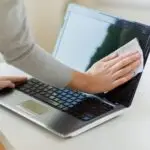
- Cleaning the screen: Use a soft, lint-free microfiber cloth specifically designed for electronics. Dampen the cloth slightly with a screen cleaning solution (never spray directly onto the screen) and gently wipe in one direction.
- Avoiding harsh chemicals: Do not use window cleaners, ammonia-based cleaners, or abrasive materials, as these can damage the screen coating.
- Positioning: Place the monitor away from direct sunlight or heat sources to prevent glare and overheating.
- Handling: Lift the monitor by its base, not by the screen, to avoid applying pressure to the display panel.
- Ventilation: Ensure the monitor’s vents are not blocked to allow for proper airflow and prevent overheating.
Care and Maintenance of the Mouse
The mouse is an input device essential for navigation. Its care includes:
- Regular cleaning: Wipe the mouse surface with a slightly damp cloth. For optical mice, clean the optical sensor underneath with a cotton swab to remove dust or debris.
- Using a mouse pad: A mouse pad provides a smooth, clean surface for the mouse to glide on, reducing wear and tear and improving tracking accuracy.
- Avoiding dropping: Dropping the mouse can damage its internal components or external casing.
- Keeping the work area clean: A clean desk prevents dirt from accumulating on the mouse sensor or scroll wheel.
- Cable management: For wired mice, ensure the cable is not tangled or pulled excessively.
Care and Maintenance of the Keypad (Keyboard)
The keypad is the primary input device for text and commands. Its care involves:
- Regular cleaning: Turn the keyboard upside down and gently shake out loose debris. Use compressed air to blow out dust and crumbs from between the keys.
- Wiping keys: Use a slightly damp cloth or an antiseptic wipe to clean the surface of the keys.
- Avoiding food and drinks: Spills are a major cause of keyboard damage. Keep liquids and food away.
- Gentle typing: Avoid hitting the keys too hard, as this can wear them out or damage the underlying mechanisms.
- Dust covers: Use a keyboard cover or dust cover when the computer is not in use to prevent dust accumulation.
- Cable inspection: For wired keyboards, check the cable for any signs of damage.
Teaching Methods/Instructional Techniques
Discussion, Demonstration, Guided Practice, Question and Answer, Explanation, Group Work, Practical Activity
Instructional Procedures
Step 1: Introduction
Time: 5 minutes
Teaching Skill: Questioning/Engagement
Teacher’s Activity: The teacher greets the students and asks them to name some external parts of a computer they use daily. The teacher then introduces the topic, “Care and Maintenance of External Peripherals of a Computer,” explaining its importance for device longevity and performance.
Pupils’ Activity: Pupils respond by naming peripherals like monitor, mouse, keyboard, printer. They listen attentively to the introduction.
Learning Point: Importance of peripherals
Step 2: General Care and Maintenance Discussion
Time: 10 minutes
Teaching Skill: Facilitation/Discussion
Teacher’s Activity: The teacher guides students to work in groups. Each group discusses general practices for caring for and maintaining external peripherals, considering aspects like cleanliness, handling, and environment. The teacher provides pictures of various peripherals to stimulate discussion.
Pupils’ Activity: Students discuss in groups, sharing ideas on general care practices. They make notes of their discussions.
Learning Point: General maintenance practices
Step 3: Monitor Care Demonstration and Discussion
Time: 7 minutes
Teaching Skill: Demonstration/Explanation
Teacher’s Activity: The teacher uses a sample monitor and cleaning materials (microfiber cloth, screen solution) to demonstrate how to properly clean and care for a monitor. The teacher explains the functions of a monitor and common faults due to poor care.
Pupils’ Activity: Students observe the demonstration, ask questions, and discuss the specific care techniques for a monitor within their groups.
Learning Point: Monitor care techniques
Step 4: Mouse Care Demonstration and Discussion
Time: 7 minutes
Teaching Skill: Demonstration/Explanation
Teacher’s Activity: The teacher demonstrates the proper way to clean and care for a computer mouse, including cleaning the sensor. The teacher explains the functions of a mouse and highlights issues that arise from neglect.
Pupils’ Activity: Students observe the demonstration, practice handling the mouse carefully, and discuss its care within their groups.
Learning Point: Mouse care techniques
Step 5: Keypad (Keyboard) Care Demonstration and Discussion
Time: 7 minutes
Teaching Skill: Demonstration/Explanation
Teacher’s Activity: The teacher demonstrates how to clean a keypad (keyboard) using compressed air and wiping the keys. The teacher explains the functions of the keypad and the importance of keeping it free from crumbs and spills.
Pupils’ Activity: Students observe the demonstration, practice gentle cleaning motions, and discuss keypad care within their groups.
Learning Point: Keypad care techniques
Step 6: Safe Handling and Fault Awareness
Time: 4 minutes
Teaching Skill: Explanation/Reinforcement
Teacher’s Activity: The teacher consolidates the discussions by emphasising safe handling, proper organisation of cables, and identifying early signs of faults (e.g., flickering screen, unresponsive mouse, sticky keys). The teacher encourages students to report faults rather than attempting complex repairs.
Pupils’ Activity: Students listen and contribute examples of safe handling and potential faults they have observed.
Learning Point: Safe handling practices
Step 7: Evaluation/Review
Time: 5 minutes
Teaching Skill: Questioning/Assessment
Teacher’s Activity: The teacher evaluates the learning by asking the following questions:
- Mention two general practices for caring for external peripherals.
- How would you properly clean a computer monitor screen?
- State one important maintenance tip for a computer mouse.
- What is a common cause of damage to a computer keypad, and how can it be prevented?
Pupils’ Activity: Pupils answer orally and in writing.
Learning Point: Peripherals care assessment
Step 8: Note-Taking
Time: 10 minutes
Teaching Skill: Guided Writing
Teacher’s Activity: The teacher guides pupils/students to copy the essential Board Summary notes on care and maintenance of external peripherals into their notebooks.
Pupils’ Activity: Pupils/students copy the notes carefully into their notebooks.
Learning Point: Recording lesson notes
Step 9: Conclusion
Time: 5 minutes
Teaching Skill: Consolidation
Teacher’s Activity: The teacher summarises the key points of the lesson, reiterating the importance of proper care and maintenance for all external computer peripherals to ensure their longevity and optimal performance. The teacher encourages students to apply these practices at home and school.
Pupils’ Activity: Pupils listen to the summary and ask any final clarifying questions.
Learning Point: Reinforcing care importance
Continuous Assessment/Further Study
Type: Homework/Practice Exercise
Instruction: Answer the following questions and, where possible, practice the care techniques at home with parental supervision.
- List three reasons why it is important to care for computer peripherals.
- Describe the steps you would take to clean a dusty computer keyboard.
- Identify a common problem that can occur with a computer mouse due to lack of care and suggest a solution.
- Observe a computer monitor at home or school. What care practices are being followed or neglected? Write a short paragraph about your observations.
Lesson Keywords
- Peripherals – External devices connected to a computer system.
- Maintenance – Actions taken to keep equipment in good working condition.
- Monitor – An output device that displays visual information.
- Mouse – An input device used to control a pointer on the screen.
- Keypad (Keyboard) – An input device used to enter text and commands.
- Dusting – The process of removing dust from surfaces.
- Spills – Accidental release of liquid onto a surface.
Differentiation
For learners needing support: The teacher will provide simplified instructions and focus on one peripheral at a time, offering more direct guidance during practical demonstrations. Peer support will be encouraged within groups.
For advanced learners: These students can research and present on the care of other external peripherals not covered in detail, such as printers or external hard drives, or investigate common repair techniques for minor peripheral faults.
Suggested Lesson Videos
For further understanding, search on YouTube for: care and maintenance of computer peripherals SS1
Community Join the conversation Open discussion +